
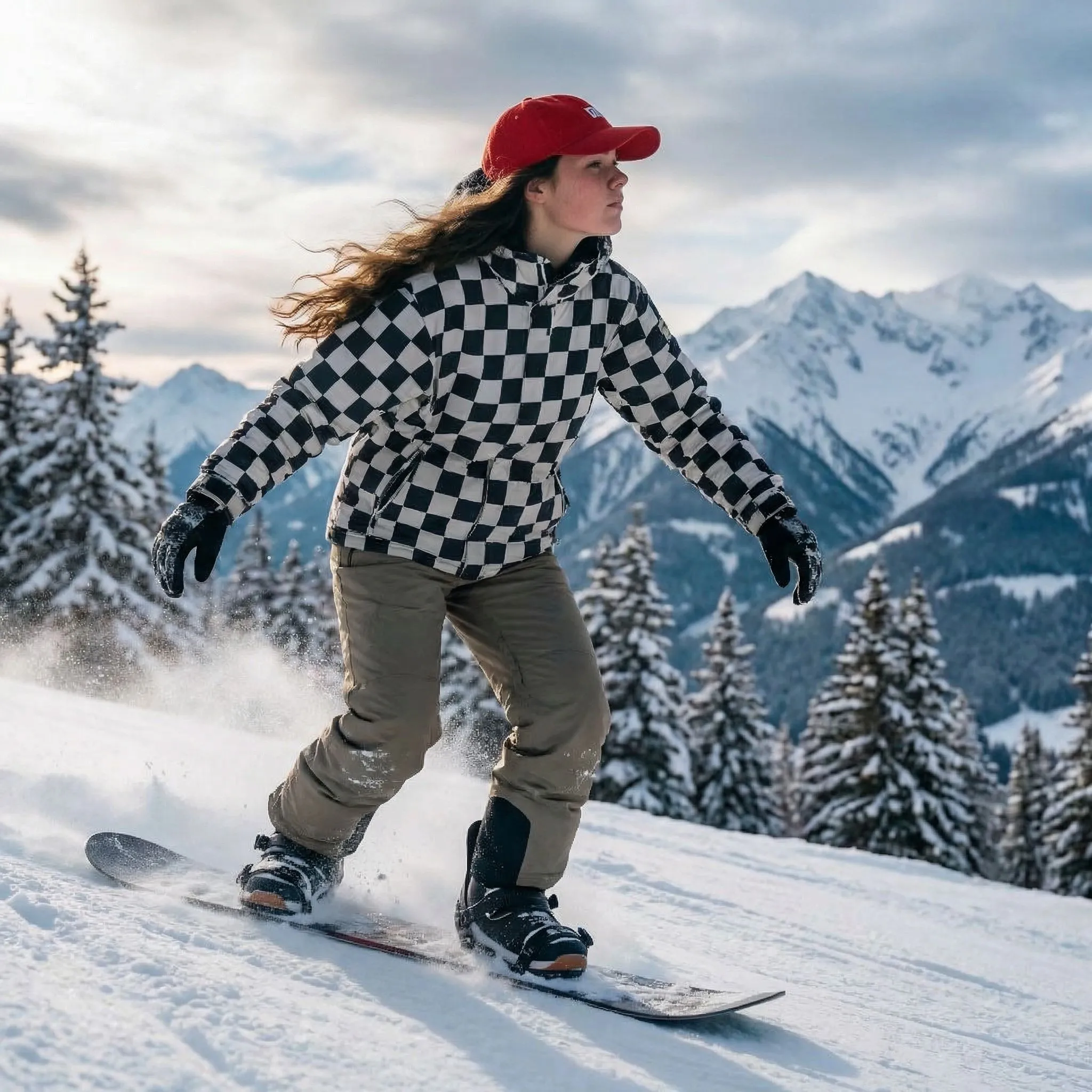
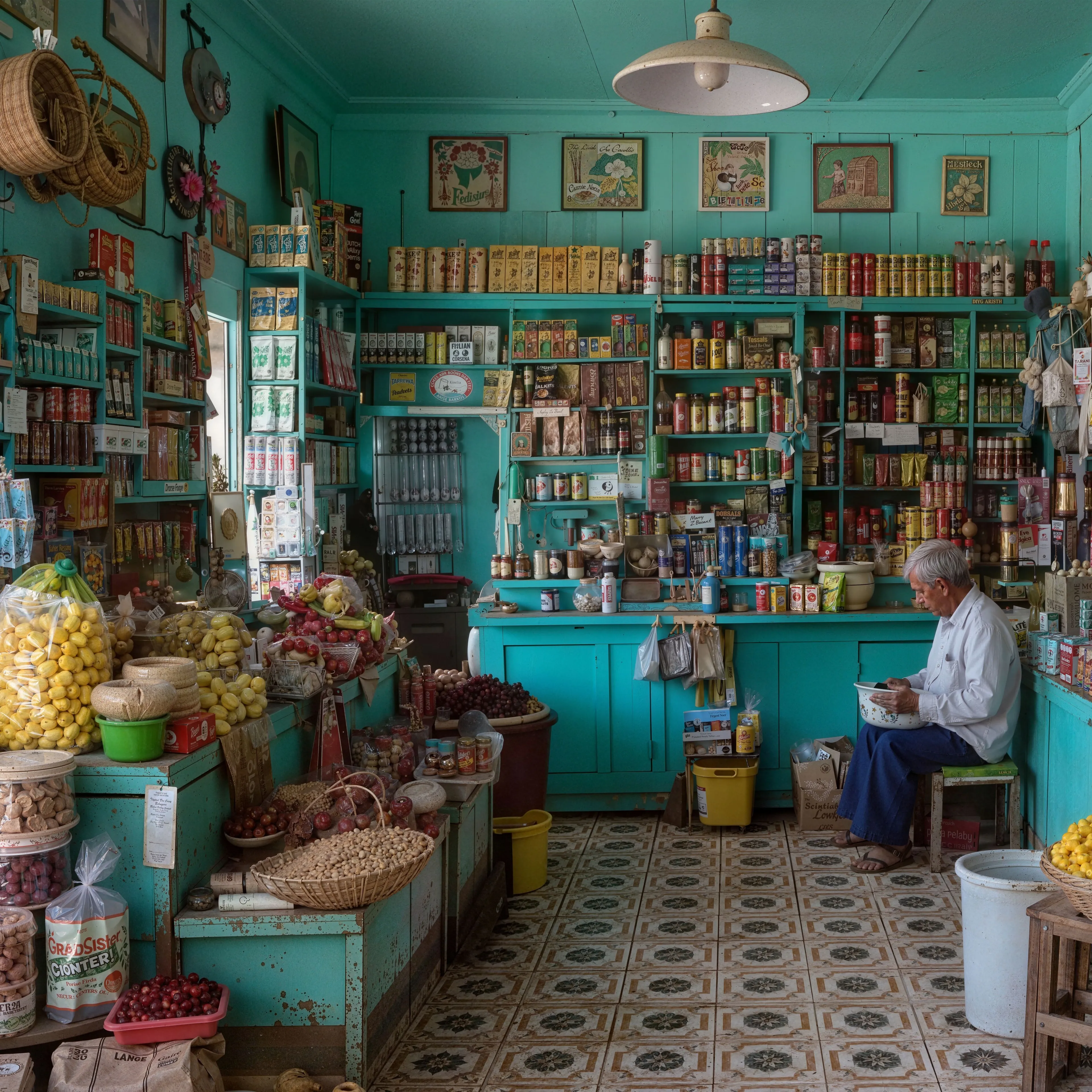
About the free image pixelator
Pixelation divides your image into a grid and replaces every block with its average color. This tool does that entirely in your browser: the image is decoded on your device, averaged block by block, and re-encoded locally, so nothing is uploaded and nothing is stored. That is also why it has no usage limits and no account requirement. The block size slider goes from 2 pixels, a subtle texture, to 64 pixels, where even a large photo collapses into a handful of colored squares.
Censoring faces, plates, and text
Pixelation is the classic censoring technique for a reason: unlike a light blur, a large pixel block genuinely destroys the information inside it, since dozens or hundreds of original pixels are replaced by a single flat color. The key decision is block size relative to the detail you are hiding. A face that fills a quarter of the frame needs far bigger blocks than a face in the background, so a good rule is to keep increasing the size until the feature is unrecognizable at full zoom, then go one step further. Remember that this tool pixelates the entire image; crop the sensitive region, pixelate it, and paste it back, or simply pixelate the whole screenshot when layout does not matter. If you prefer a softer look for a full-image treatment, the free image blur tool applies a gaussian blur instead.
Pixel art and retro looks
The same operation that censors a face also makes a great retro aesthetic. Pixelated portraits work well as avatars, game-style thumbnails, and social banners, echoing the look of classic 8-bit and 16-bit sprites. For the crispest result, downscale the photo first with the free image resizer to something small like 128 pixels wide, then pixelate with a small block size and enlarge the result again; starting from fewer pixels gives cleaner, more deliberate blocks than pixelating a full-resolution photo directly. If you want a stylized character rather than a grid effect, the free photo to anime converter transforms portraits with AI instead.
Formats, limits, and quality
The pixelator accepts JPG, PNG, WebP, AVIF, GIF, BMP, and HEIC images up to 64 megapixels on desktop and 16 megapixels on iPhone and iPad. Output keeps your input format where the browser can encode it, so PNG stays lossless and photos stay JPG or WebP at high quality, always without a watermark. The image dimensions never change; only the level of detail does. And if you ever need the opposite of this tool, turning a small, blocky image into a large, sharp one, that is exactly what Upsampler's premium AI upscalers do, with a free AI image upscaler available to try first.