Blog
Latest posts from Upsampler.
How to Make AI-Generated Images Look Less AI and More Real
Learn how to fix common AI image artifacts like plastic skin, weird hands, and uncanny faces. A step-by-step workflow using AI generation, editing, upscaling, and clarity enhancement to make AI images look indistinguishable from real photos.

Admin
@lucak5s
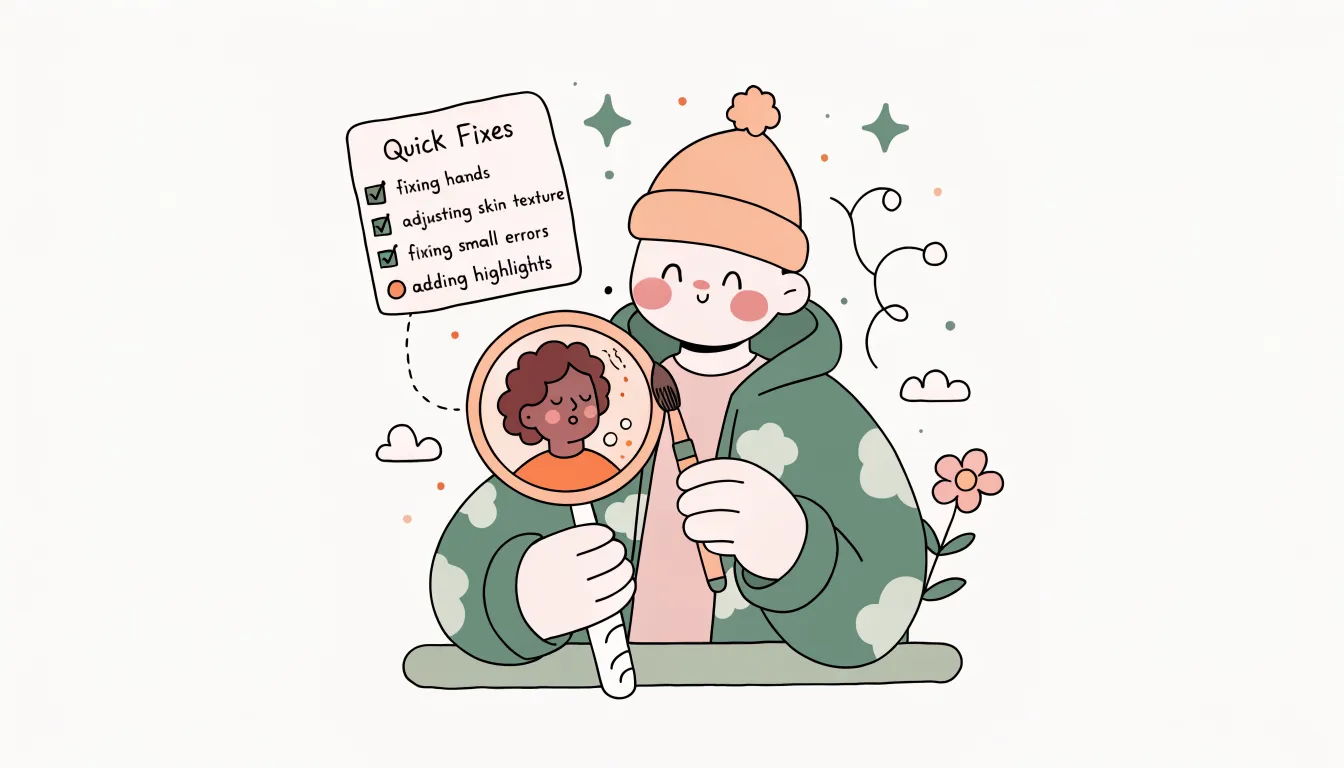
AI-generated images have come a long way, but most people can still spot one at a glance. There is a specific "AI look" that gives it away, and once you learn to recognize it, you see it everywhere. Plastic-smooth skin. Hands with too many fingers. Text that melts into gibberish. Backgrounds that are sharp in the wrong places and blurry where they should not be.
If you are an AI artist, content creator, or marketer who needs images that pass as real, these telltale signs are a serious problem. The good news is that every one of them can be fixed. This guide walks you through a complete workflow using tools on Upsampler.com to take AI-generated images from obviously fake to convincingly real. You will learn what to look for, which tools fix which problems, and how to chain them together into a fast, repeatable process.
The Common AI Tells (And Why They Happen)
Before you can fix the problem, you need to understand what you are looking for. Here are the most common giveaways in AI-generated images.
Plastic skin. AI models tend to over-smooth facial texture, removing pores, fine lines, and natural blemishes. The result looks like a wax figure or a heavily filtered Instagram photo. This happens because training data often includes retouched photos, so the model learns to treat smooth skin as the default.
Uncanny valley faces. Subtle asymmetry is what makes real faces look real. AI often produces faces that are too symmetrical, with eyes that are slightly misaligned in gaze direction or facial features that do not quite sit right together.
Weird hands and fingers. This is the most well-known AI artifact. Extra fingers, fused digits, impossible joint angles, and thumbs on the wrong side. Hands are geometrically complex and highly varied in training data, which makes them one of the hardest things for models to get right.
Text artifacts. Any text in an AI image is almost always garbled, partially readable, or arranged in nonsensical ways. Most generation models struggle with character-level precision.
Overly smooth textures. Beyond skin, AI images often lack the micro-detail you would see in a real photograph. Fabric looks flat, wood grain is absent, metal has no scratches, and surfaces that should be rough appear polished.
Lighting inconsistencies. Shadows may fall in contradictory directions. Reflections in eyes might not match the scene. A subject may be lit from the left while the environment suggests light from the right.
Repeating patterns. Look at crowds, bookshelves, or tile floors in AI images. You will often see unnatural repetition where the model copies and pastes elements instead of generating unique instances.
Symmetry overload. Real photographs are rarely perfectly symmetrical. AI images often default to unnaturally balanced compositions, especially for buildings, objects, and faces. This subtle uniformity signals "computer-generated" even when individual details look fine.
Background incoherence. Windows that open into nothing, staircases that lead nowhere, and rooms with impossible geometry. AI models sometimes generate backgrounds that look plausible at a glance but fall apart under closer inspection.
The Fix Workflow: Generate, Edit, Upscale, Enhance
The key insight is that no single step fixes everything. Instead, you need a pipeline where each stage addresses specific problems. Here is the workflow that produces the most realistic results.
Step 1: Generate with the Right Model
Realism starts at generation. Choosing the wrong model means fighting an uphill battle in every subsequent step. For photorealistic results on Upsampler.com, these models consistently produce the best base images:
- Recraft V4: Produces the most naturally photographic results. Skin texture, lighting, and composition feel like real candid photography rather than AI art. The best starting point for portraits and lifestyle images.
- GPT Image 1.5: Excellent at complex scenes with multiple subjects. Handles interactions between people and environments well, with consistent lighting across the frame.
- Flux 2 Max: Strong at detailed environments and produces natural-looking depth of field. Great for architectural, product, and landscape images where you need convincing detail throughout.
- Ideogram V3: The go-to choice when your image includes any text elements. Also produces clean, well-composed scenes that work well as a base for further refinement.
Prompt tips for realism: Include camera and lens references ("shot on Sony A7IV, 50mm f/1.8"), specify natural lighting conditions ("overcast afternoon light"), and mention imperfections ("slightly windswept hair, natural expression"). Telling the model to include imperfections sounds counterintuitive, but it is one of the most effective ways to avoid the "too perfect" AI look.
Step 2: Fix Hands, Faces, and Artifacts with the Editor
Once you have a base image you like, open it in the Free AI Image Editor to fix specific problem areas. AI inpainting lets you select a region and regenerate just that part, keeping the rest of the image intact.
Common fixes at this stage:
- Hands: Select the hand area and prompt something like "natural human hand resting on table, five fingers, correct anatomy." Regenerate until the hand looks right.
- Faces: Fix misaligned eyes, unnatural expressions, or asymmetry issues by selecting the face and providing a corrective prompt.
- Text artifacts: If there is garbled text in the image, either remove it entirely or replace it with clean, readable text.
- Background anomalies: Fix repeating patterns, impossible architecture, or floating objects by selecting the area and regenerating.
The goal of this step is not perfection. You want a clean, anatomically correct base image. Fine detail and texture come next.
Step 3: Add Real Detail with Creative Upscale
This is where AI images go from "pretty good" to genuinely convincing. The Free AI Image Upscaler on Upsampler does not just make images bigger. It regenerates them at a higher resolution, adding the kind of fine detail that separates real photos from AI art.
What Creative Upscale adds:
- Skin pores and fine lines that make faces look human instead of synthetic
- Fabric texture with visible weave, wrinkles, and natural draping
- Hair detail with individual strands instead of smooth, painted-looking clumps
- Surface imperfections on materials like wood grain, metal scratches, and concrete texture
Recommended settings for realism:
- Creativity: 5 to 7 (enough to add detail without changing the image's character)
- Detail: 6 to 8 (higher values push more texture into skin and surfaces)
- Upscale factor: 2x to 4x depending on your target resolution
Use the Regional Creativity feature to apply different settings to different parts of the image. For example, apply high detail to skin areas while keeping clothing and backgrounds at lower creativity to preserve their original look.
Step 4: Polish with the Clarity Enhancer
The final step is the Free Clarity AI Upscaler, which sharpens the overall image and adds a final layer of definition. Think of this as the equivalent of a photographer's final sharpening pass in Lightroom. It tightens edges, improves micro-contrast, and gives the image that crisp, professional quality that real photographs have.
This step is especially effective after creative upscaling, as it locks in all the newly generated detail and ensures nothing looks soft or blurry.
How This Compares to Traditional Editing Tools
You might be wondering whether you could achieve the same results with tools like Adobe Photoshop, Lightroom, or Remini. Here is the honest comparison.
Photoshop is incredibly powerful and gives you granular control over every pixel. But fixing AI artifacts manually is time-consuming. Painting in realistic skin pores, correcting hand anatomy, and adding convincing surface texture by hand requires significant skill and hours of work.
Lightroom is a color grading and tone adjustment tool. It can make an AI image look better in terms of exposure, contrast, and color balance, but it cannot add detail that is not there. It will not fix plastic skin or weird hands. It is great as a final color grading step, but it cannot replace the structural fixes this workflow provides.
Remini is a face restoration app that can improve facial detail. However, it only works on faces and has a tendency to push everyone toward the same "enhanced selfie" look, which can actually make images look more artificial rather than less.
The Upsampler.com workflow handles all of these tasks in a single platform with AI doing the heavy lifting. Generation, editing, upscaling, and clarity enhancement are all connected, so you do not need to export and import between five different applications.
Frequently Asked Questions
Which AI model produces the most realistic images?
For portraits and people, Recraft V4 and GPT Image 1.5 consistently produce the most photorealistic base images. For scenes and environments, Flux 2 Max is excellent. All of these are available as premium models on Upsampler.com.
Can I fix AI images that were generated on other platforms?
Yes. The Image Editor, Upscaler, and Clarity Enhancer work with any image, regardless of where it was generated. Upload images from Midjourney, DALL-E, Stable Diffusion, or any other tool.
How long does the full workflow take?
Once you are familiar with the process, the entire generate, edit, upscale, and enhance pipeline takes about 5 to 10 minutes per image. That is significantly faster than manual retouching in Photoshop, which can take hours for similar results.
Do I need a paid plan for this?
You can get started entirely for free. The Free Tools hub on Upsampler includes free versions of the image generator, editor, upscaler, and clarity enhancer, all with no signup required. When you want access to premium models and more GPU time, no subscription is required -- one-time credits are available and never expire, so you only pay for what you use.
Will AI images ever be truly indistinguishable from real photos?
They already can be, with the right workflow. The models continue to improve rapidly, and what required heavy post-processing a year ago now needs only minor adjustments. The techniques in this guide bridge the gap between raw AI output and convincing realism. As models get better, the amount of post-processing needed will decrease, but understanding the workflow gives you an edge regardless.
Start Making Your AI Images Look Real
The "AI look" is not a permanent limitation. It is a set of specific, identifiable, and fixable problems. By choosing the right model, fixing artifacts with the editor, adding real detail with creative upscale, and polishing with the clarity enhancer, you can produce images that genuinely fool the eye.
The best part? Each step in this workflow makes the next one more effective. A better base image means fewer edits. Cleaner edits mean the upscaler can focus on adding detail instead of compensating for problems. And a well-upscaled image responds beautifully to the final clarity pass.
The entire workflow is available on Upsampler.com, and you can start for free with the Free Tools suite. No signup, no watermarks, no compromises.
Whether you are creating content for social media, building a portfolio, generating product photos, or just making art that you are proud of, this workflow gives you the control to close the gap between AI output and photographic reality.
Try the full workflow on Upsampler.com and turn your AI-generated images into something people will swear is a real photograph.