How the AI dance generator works
This AI dance video generator is built for one job: making the person or character in a single photo dance. You upload the picture, tap a dance style, and the model animates that exact figure in place, keeping the outfit, the hair, and the room or street behind them. If you want to invent a scene from words, or animate something other than a dancer, the general free AI video generator is the better fit; this page simply removes the prompt writing for dance clips.
Behind each style chip is a written dance description that the video model reads together with your photo. The default model is LTX 2.5, which also produces a soundtrack for the clip; you can switch to LTX 2.3, Wan 2.2 14B, or Wan 2.2 5B in the Model field. Anything you type under extra details is added to the description, so you can ask for a big smile, a final bow, or a particular camera angle without rewriting the whole thing.
Choosing a photo that dances well
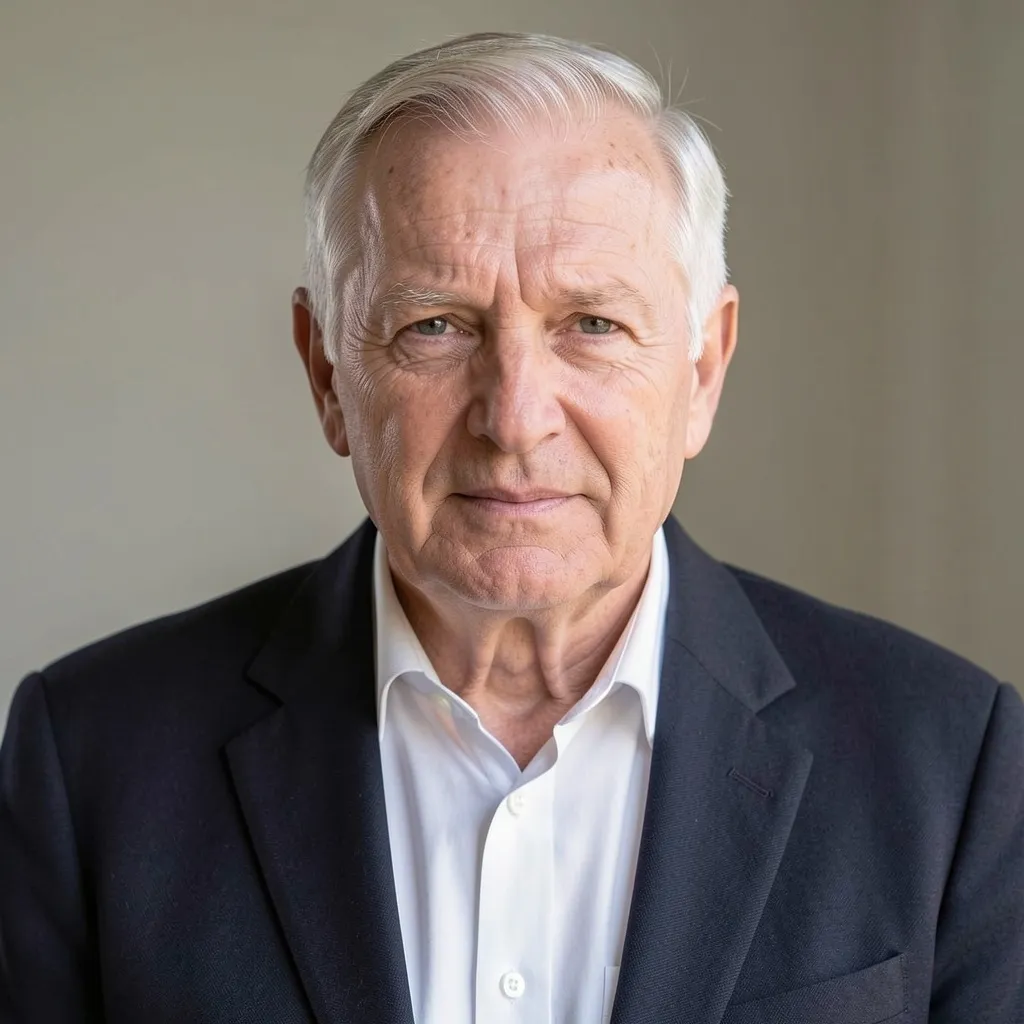
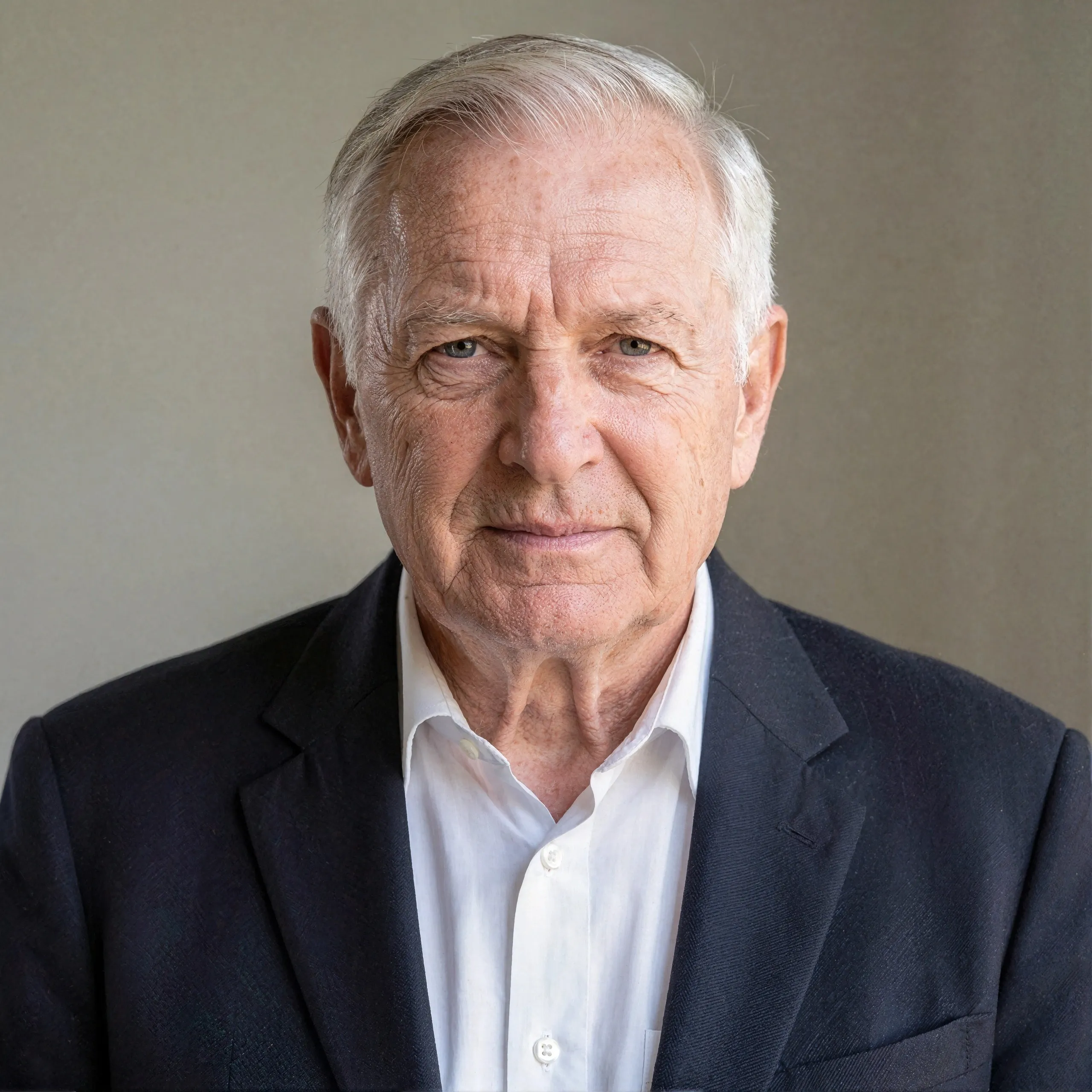
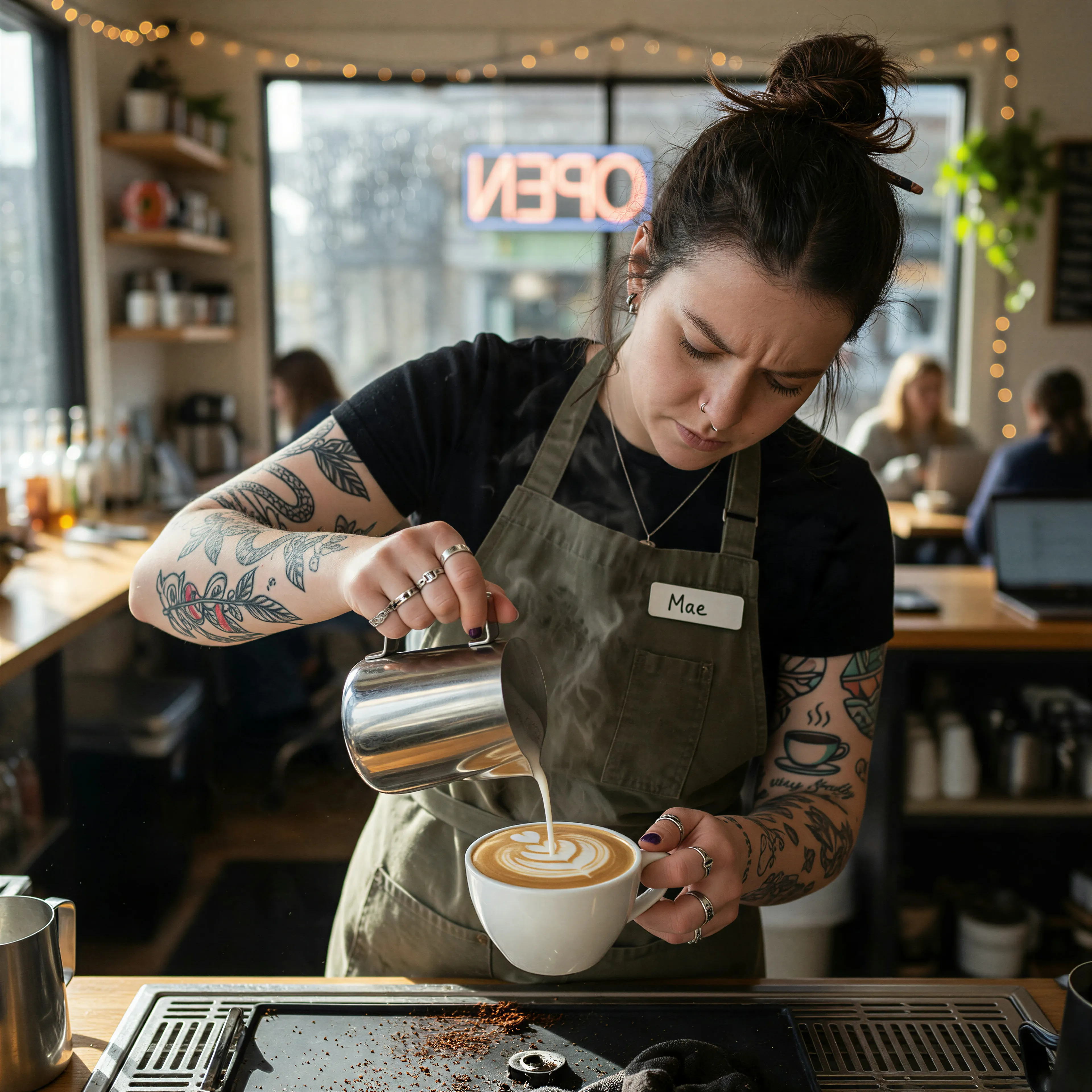
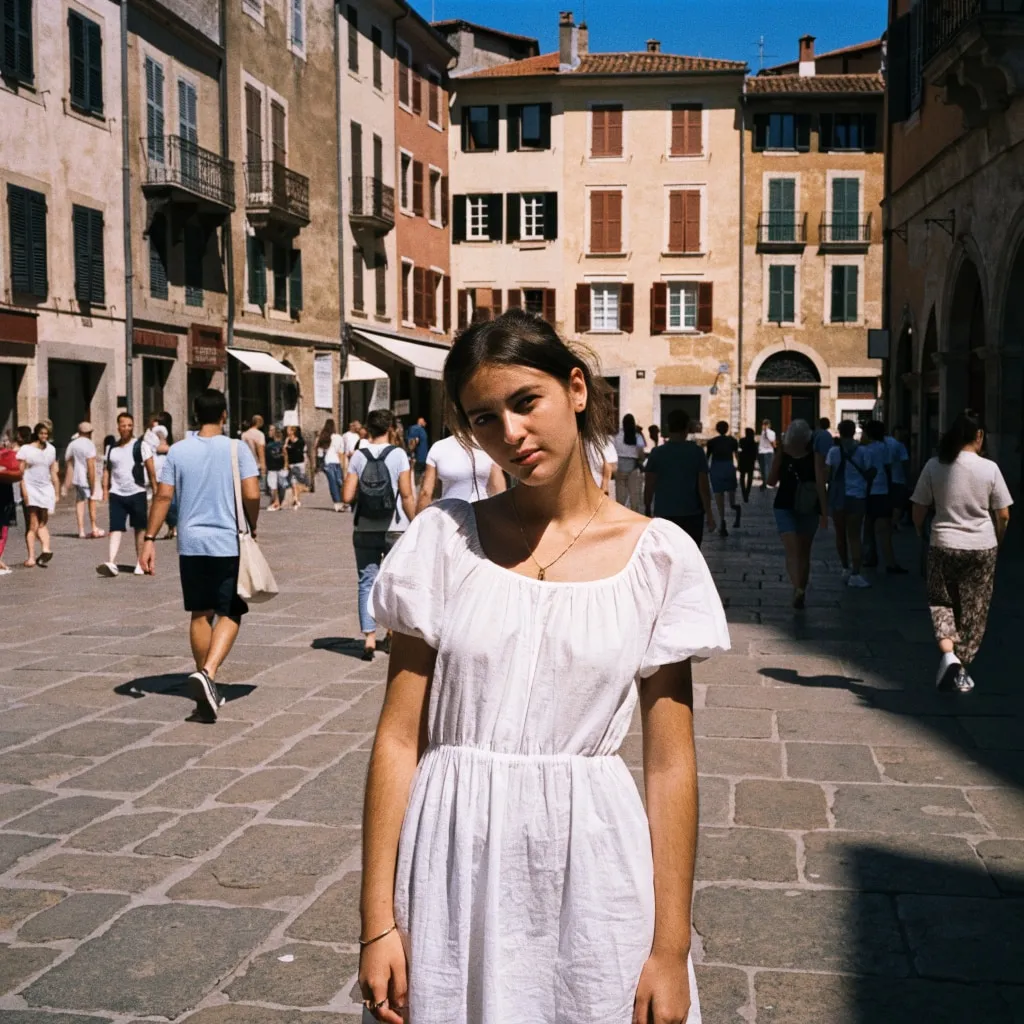
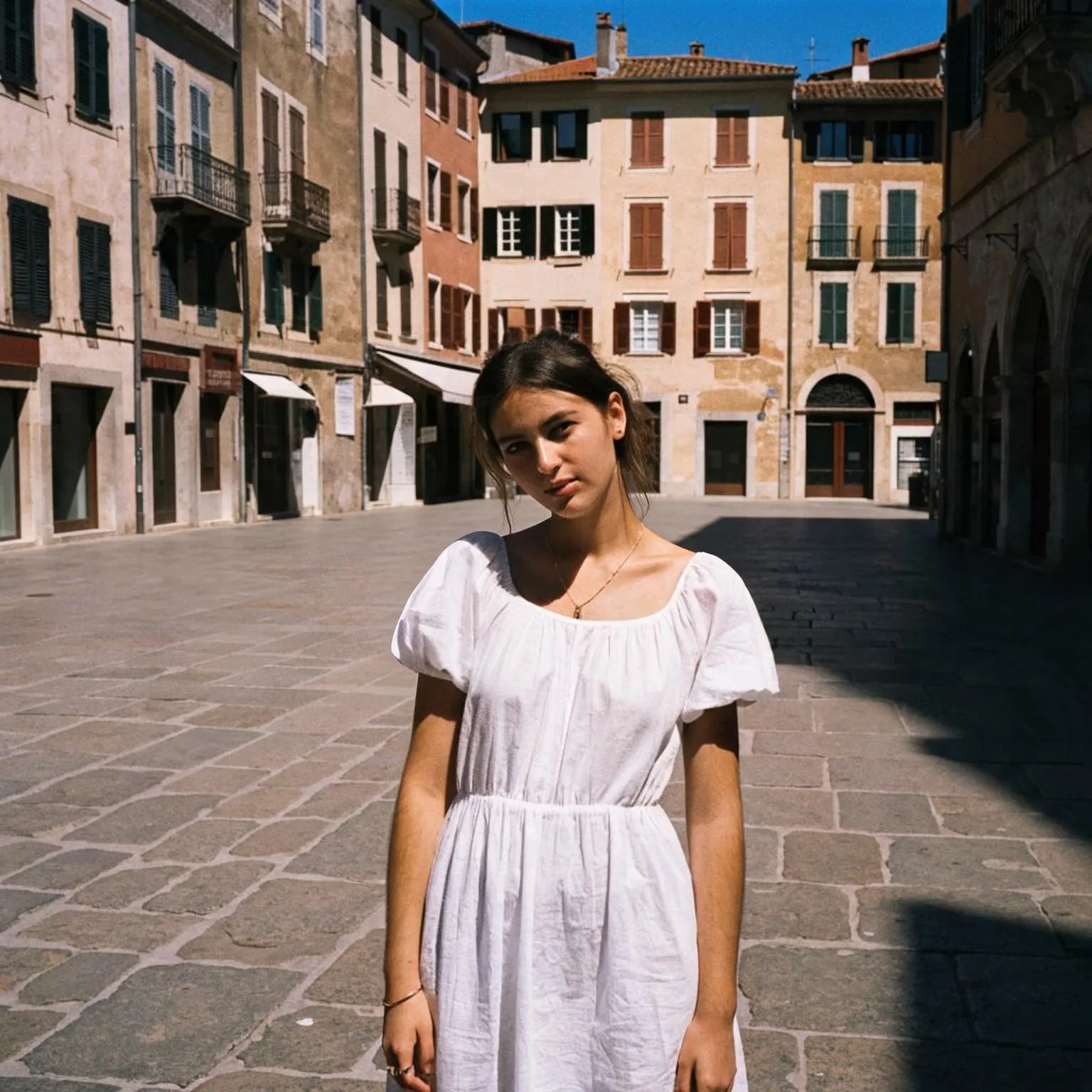
The best input is a full-body shot with some space around the dancer. When arms and feet are cut off by the frame, the model has to guess where they go, and the guesses show up as smeared hands or legs that slide. A plain or tidy background helps too, because every object behind the dancer has to stay put while they move. Portrait photos work well for social clips; the output follows the shape of your photo, from tall portrait up to a wide 2.5 to 1 frame.
Characters work as well as people. A drawn mascot, a game avatar, a figurine, or a pet standing on two legs can all dance, as long as the figure has a clear body shape. Illustrated characters with simple shapes often animate more cleanly than busy photographs. If you only have a head-and-shoulders picture, you can make a full-body version first with the free AI image generator and then bring that one here.
Use photos of yourself, your own characters, or people who are happy to be animated. Dancing clips of a real person travel fast once shared, so ask first when the photo is of someone else.
Dance styles and what a short clip can show
Each clip runs 2 to 5 seconds, so think of it as one move rather than a full routine. Hip hop gives bouncing footwork and arm waves, ballet slows things down into a turn with long lines, salsa adds quick side steps and a spin, the viral style keeps the dancer facing the camera with simple repeated moves, and robot breaks the motion into sharp mechanical stops. Two seconds is the default because it fits the daily free allowance best; three to five seconds give a move room to finish.
Clips render at around 480p, which looks right on a phone and in a chat, and come as MP4 files with no watermark. Fast spins are the hardest case for open video models, so if a turn tears the dancer apart, try a calmer style or regenerate: every run starts from a fresh random seed and moves a little differently.
The extra details field is where you steer the clip without losing the style. Small additions work best: a big smile, a hair flip at the end, a slow zoom toward the dancer, spotlights in the background. Describing a whole new location tends to fight with the photo, because the model is also asked to keep the original background, so change the scene in the photo itself before you animate it. Clothing matters more than you might expect. Loose skirts, long coats, and wide sleeves move with the dance and add a lot of life, while very busy patterns can shimmer as the dancer turns. If you are making a series for a channel, reuse the same photo across several styles: the dancer stays recognizable and each clip shows a different move, which makes a natural set of short posts.
Free limits and making clips longer
The dance generator runs on shared free GPUs, and each visitor gets a daily allowance of GPU time. A two-second clip on LTX 2.5 uses roughly a third of it, so expect about three default clips a day; LTX 2.3 is lighter on the allowance. Connecting a free Hugging Face account raises the limit. Photos can be up to 4096 pixels per side.
To stretch a dance past five seconds, generate a few moves and join them in any video editor. For a smoother, higher frame rate look, run the finished clip through the free video frame interpolation tool, which adds in-between frames so quick moves look less choppy.