Free Text Behind Image | No Sign-Up

Place bold text behind the subject of your photo, the poster-style effect you see everywhere. One AI cutout, then every tweak is instant and free. No sign-up, no watermark.

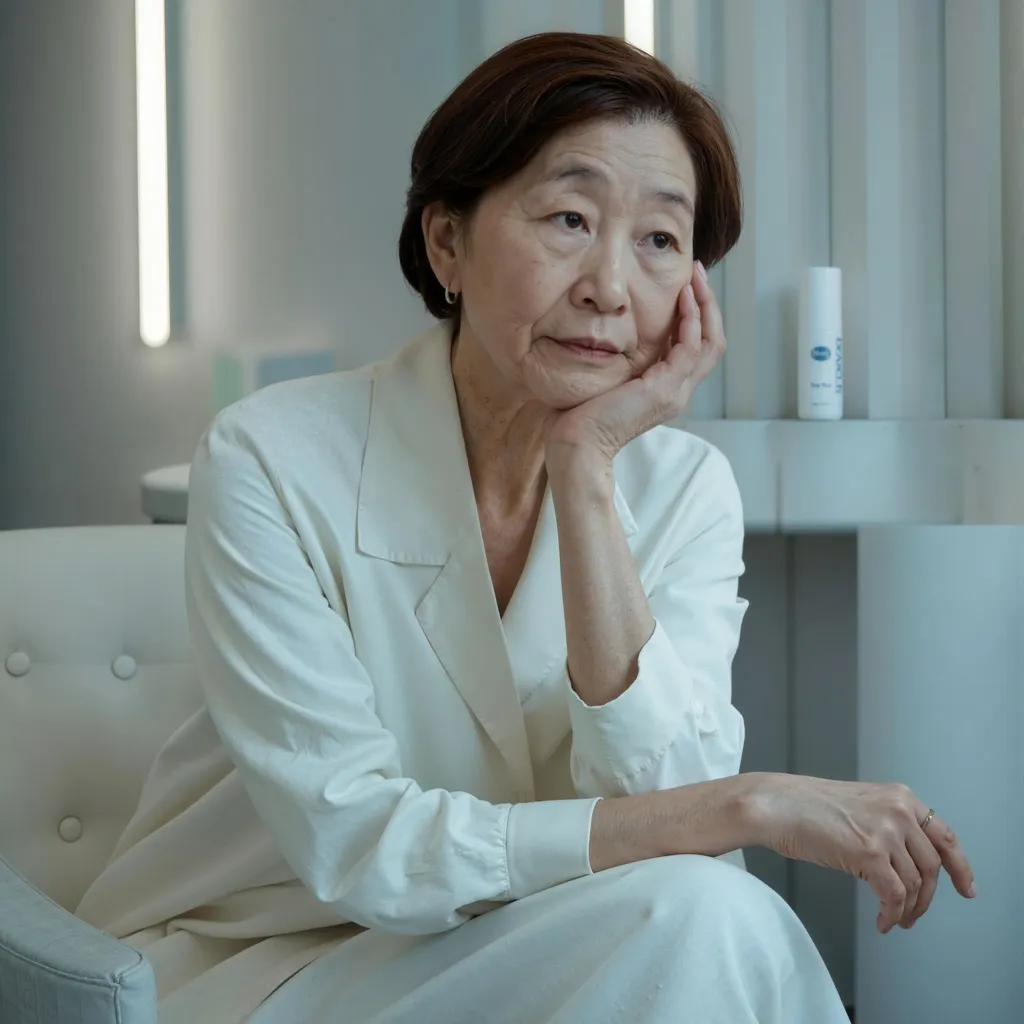
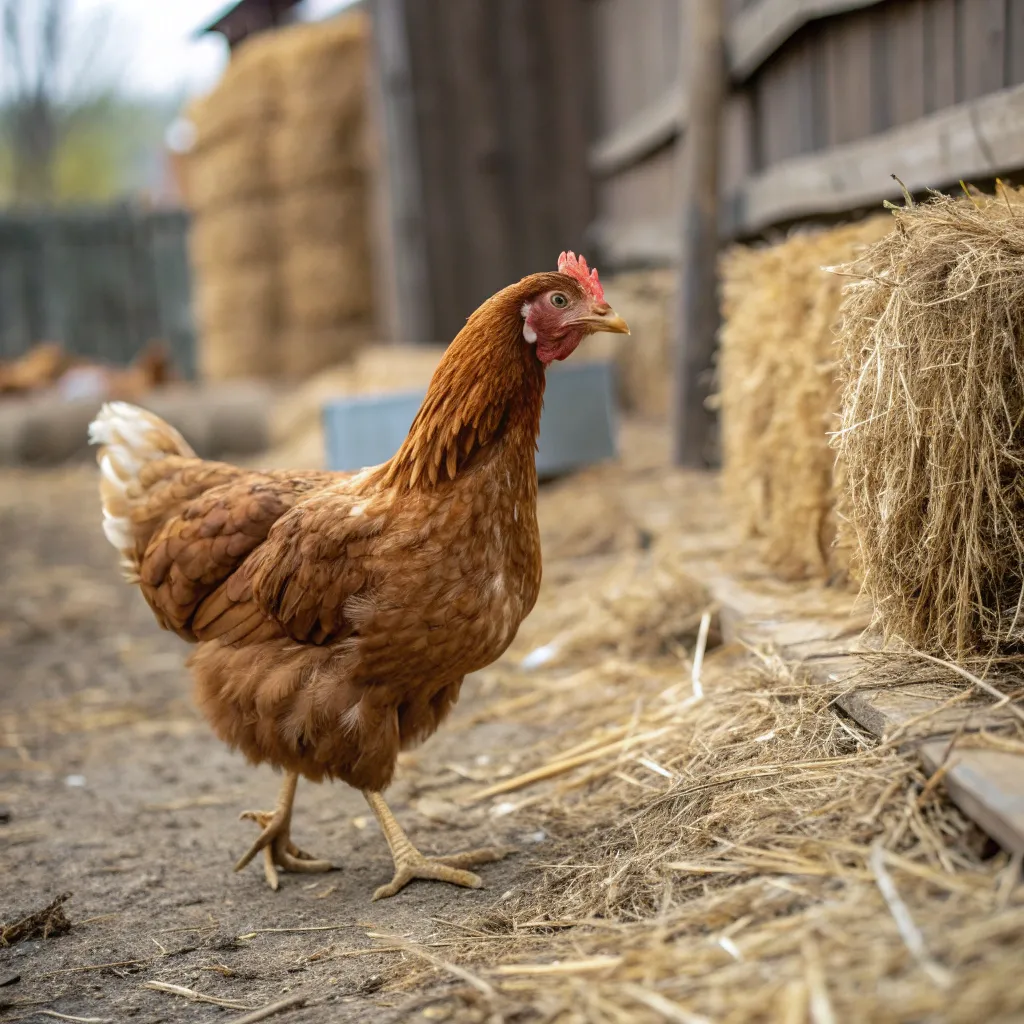
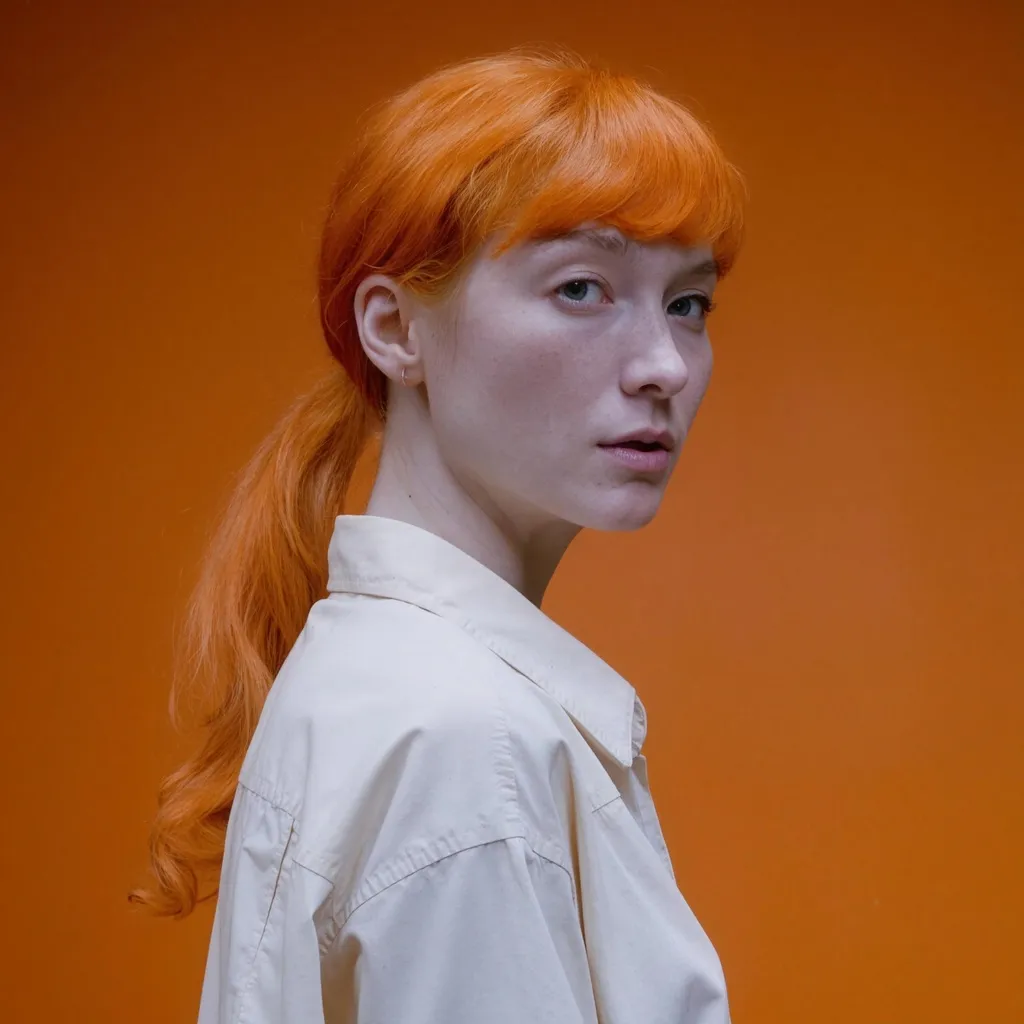
Examples · tap to try

Drop a photo with a clear subject and press Place Text Behind. The AI cuts the subject out once; after that you type, style, and drag your text freely, and every change renders instantly in your browser.

More Free Tools

Discover more free tools to enhance your creative projects, no account required.

Our Premium Tools

Access highly advanced AI tools with flexible pricing: subscription or one-time payment.

Nano Banana 2Nano Banana ProGPT Image 2Nano Banana 2 LiteSeedream 4Seedream 5 ProGPT Image 1.5Flux 2 ProFlux 2 MaxQwen Image 2 ProGrok Imagine ImageIdeogram V4Nano BananaImagen 4Seedream 3Seedream 4.5GPT ImageFlux Kontext MaxQwen Image 2Recraft V4Recraft V4.1Krea 2Imagen 3Seedream 5 LiteFlux 1.1 ProFlux 2 KleinFlux Kontext ProZ Image TurboRecraft V3Ideogram V3Flux SchnellWan 2.2Qwen ImageFluxSeed VR 2P Image UpscaleGANStable DiffusionQwen Edit 2511BiRefNet Background RemovalDepth Anything V2Flux Fill ProQwen EditFlux Kontext FastHappy HorseSeedance 2Grok Imagine Video 1.5Seedance 1.5 ProGrok Imagine VideoKling 2.5 ProRunway Gen 4.5Veo 3.1P-VideoLTX 2.3 FastLTX 2.3 ProSeedance 1 ProP-Video DraftLTX 2 DistilledSeedVR 2FlashVSR
01 · Image Editing

Edit Images at Full Resolution

Edit images with simple text prompts, or mask specific areas to regenerate only what you want while keeping the rest of the image at full resolution.

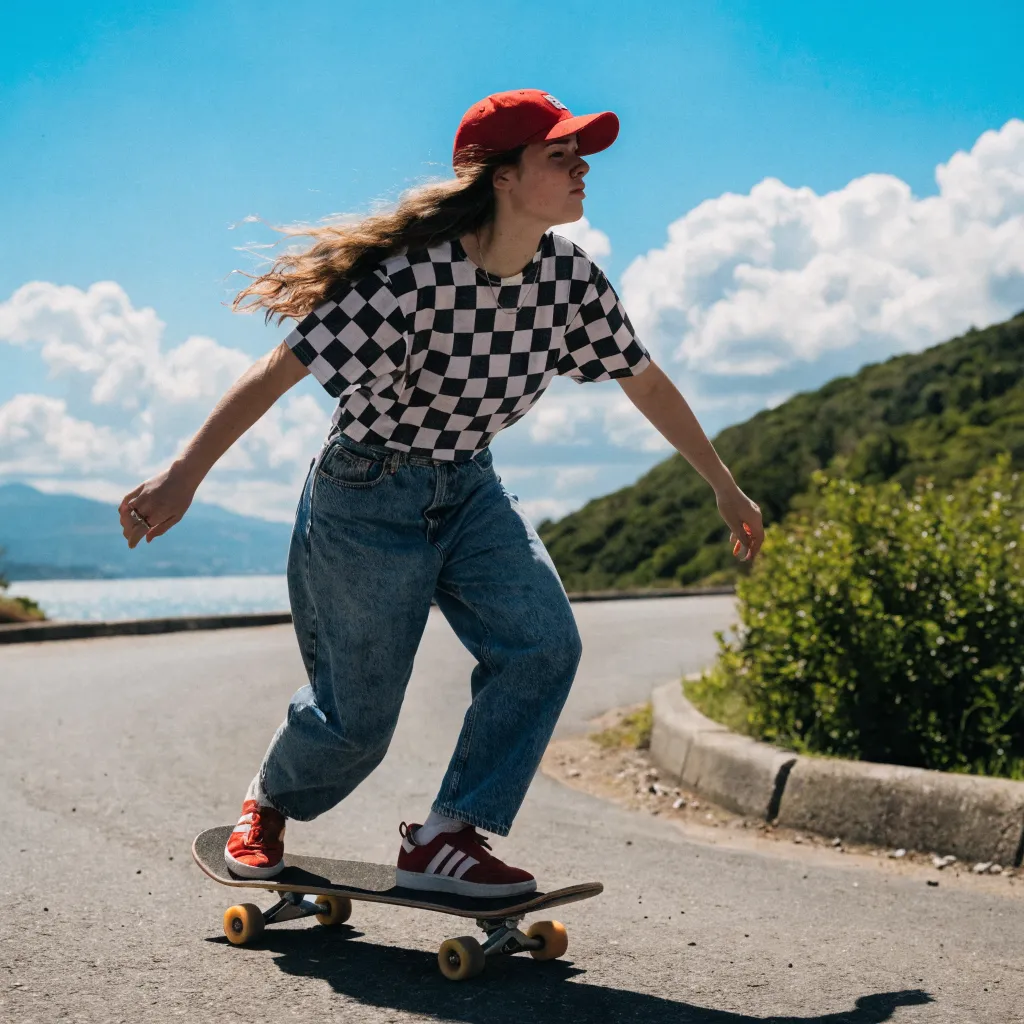
Before
Skater girl before and after editing before enhancement and upscaling
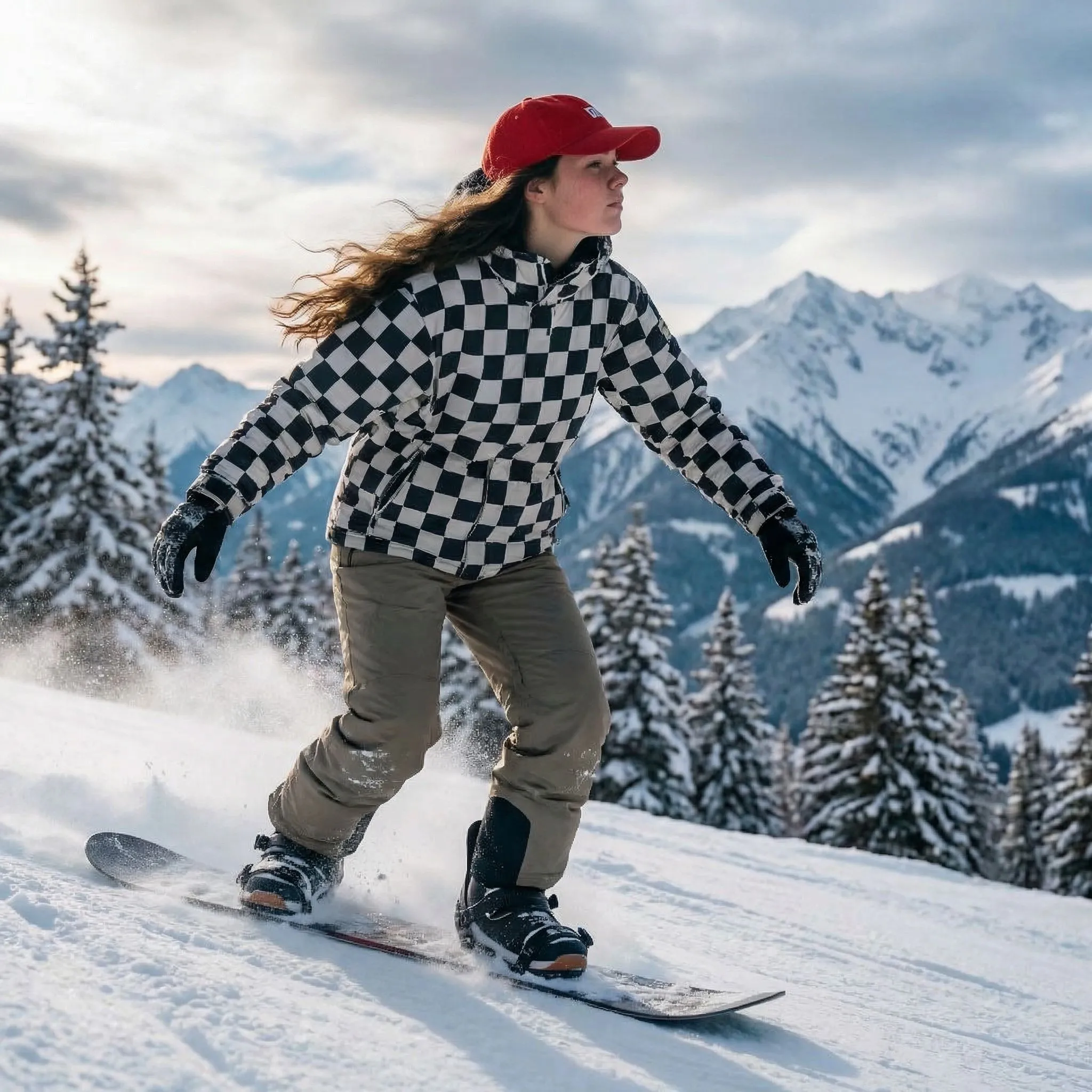
After
Skater girl before and after editing after enhancement and upscaling
02 · Image Upscaling

Upscale and Enhance Images with AI

Increase image resolution and add ultra-fine detail.

Before
Japanese supermarket enhanced, demonstrating the AI art upscaler before enhancement and upscaling
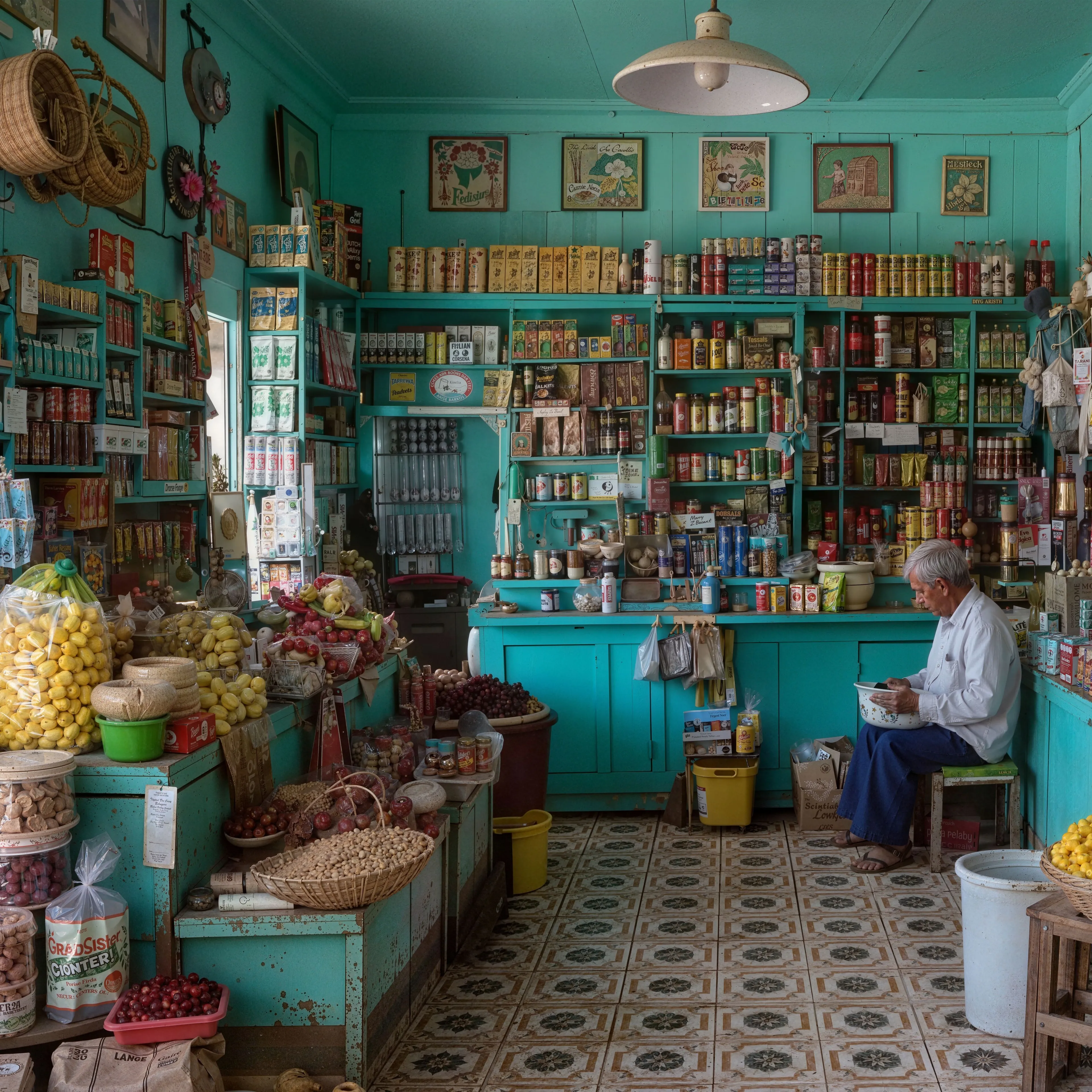
After
Japanese supermarket enhanced, demonstrating the AI art upscaler after enhancement and upscaling
03 · Image Generation

Generate Images with the World's Best AI Models

Generate completely new images from text prompts and reference images.

04 · Video Generation

AI Video Generation Made Simple

Generate videos from text prompts, or animate existing images into smooth, natural motion.

05 · Video Upscaling

Upscale Videos to Crisp 4K

Increase video resolution up to 4K with state-of-the-art video super-resolution.

The text-behind-subject effect, automated

The text-behind-subject look, a huge headline that seems to pass behind a person, is everywhere: YouTube thumbnails, album art, posters, and social graphics. Producing it normally means masking the subject by hand in an editor. Here the AI does the masking: one cutout call separates your subject, and the tool layers your text between the background and the subject so letters disappear naturally behind shoulders, heads, and props.

Only that first cutout uses the free daily AI allowance. From then on the editing is pure browser canvas: type new text, switch fonts, recolor, rotate, stack several text layers, and drag them around the image, with every change rendering instantly and costing nothing.

Getting the classic look

The effect works best when the text is huge and the overlap is obvious. Start with a short word in Impact or Arial Black at a large size, position it so the subject covers its lower half, and keep high contrast between text color and background. Multiple layers add depth: a giant faded word behind the subject plus a small sharp line elsewhere reads like a designed poster. Photos with a clearly separated subject, a person against sky, a product on a table, a pet on grass, cut out most cleanly.

What to expect

The export is a full-resolution PNG rendered from your original pixels; the text is drawn as vector-sharp type at export size, so nothing comes back downscaled or pixelated. If you want the cutout itself on a transparent background, the free AI background remover gives you exactly that, and the free AI background blur uses the same one-call pipeline for portrait-style bokeh. The tool accepts JPG, PNG, and WebP up to 4096px per side. Uploads are processed transiently for the cutout and never stored in a gallery.

FAQ

Frequently Asked Questions