Free AI Text in Image Upscaler | No Sign-Up

Enhance text in images with AI. Screenshots, scans, signs, and documents come back 4x larger with sharp, readable letters that stay the letters they were. No sign-up.

  • No account
  • No ads
  • No watermark
Examples · tap to try

Drop an image with text and press Sharpen Text. GAN, the faithful default, enlarges it 4x and sharpens every stroke without swapping characters; zoom into the smallest line to check.

More Free Tools

Discover more free tools to enhance your creative projects, no account required.

Our Premium Tools

Access highly advanced AI tools with flexible pricing: subscription or one-time payment.

Muse ImageNano Banana 2Nano Banana 2.1GPT Image 2GPT Image 2.5 FlareGPT Image 2.5 SunburstGPT Image 2.6 FlareGPT Image 2.6 SunburstGrok Imagine Image 2Nano Banana 2 LiteNano Banana ProSeedream 4Seedream 5 ProSeedream 5.5GPT Image 1.5Flux 3Qwen Image 3Qwen Image 2 ProGrok Imagine ImageP-Image IdeogramKrea 2Krea 3MAI Image 2.5Nano BananaImagen 4Seedream 3Seedream 4.5Seedream 5 FlashSeedream 5 LiteFlux 2 KleinFlux 2 ProFlux 2 MaxFlux 3 KleinZ Image TurboQwen Image 2Recraft V4.1Ideogram V4Ideogram V4.5Imagen 3Flux Kontext ProFlux Kontext MaxQwen ImageRecraft V4Ideogram V3Flux SchnellFlux 1.1 ProWan 2.2Recraft V3P Image UpscaleSeed VR 2FluxStable DiffusionGANFlux Fill ProQwen Edit 2511Qwen EditFlux Kontext FastMiniMax H3 Max TurboMiniMax H3Seedance 2.5Wan 3.0Gemini Omni 1.2 FlashMiniMax H3 LiteGrok Imagine VideoGrok Imagine Video 1.5P-Video 2 ProSeedance 1 ProSeedance 1.5 ProSeedance 2 MiniWan 2.7Kling 2.5 ProVeo 3.1 (No Audio)LTX 2.5 FastP-Video 2P-VideoKling 4.0 FlashRunway Gen 4.5P-Video 2 DraftWan 2.2 14B ProP-Video DraftLTX 2.5SeedVR 2RelayVSRRTX VSR
01 · Image Upscaling

Upscale Images to 100 MP

Add real detail as you enlarge.

Before
Out-of-focus Amsterdam street with a cyclist, sharpened with the AI image upscaler before enhancement and upscaling
After
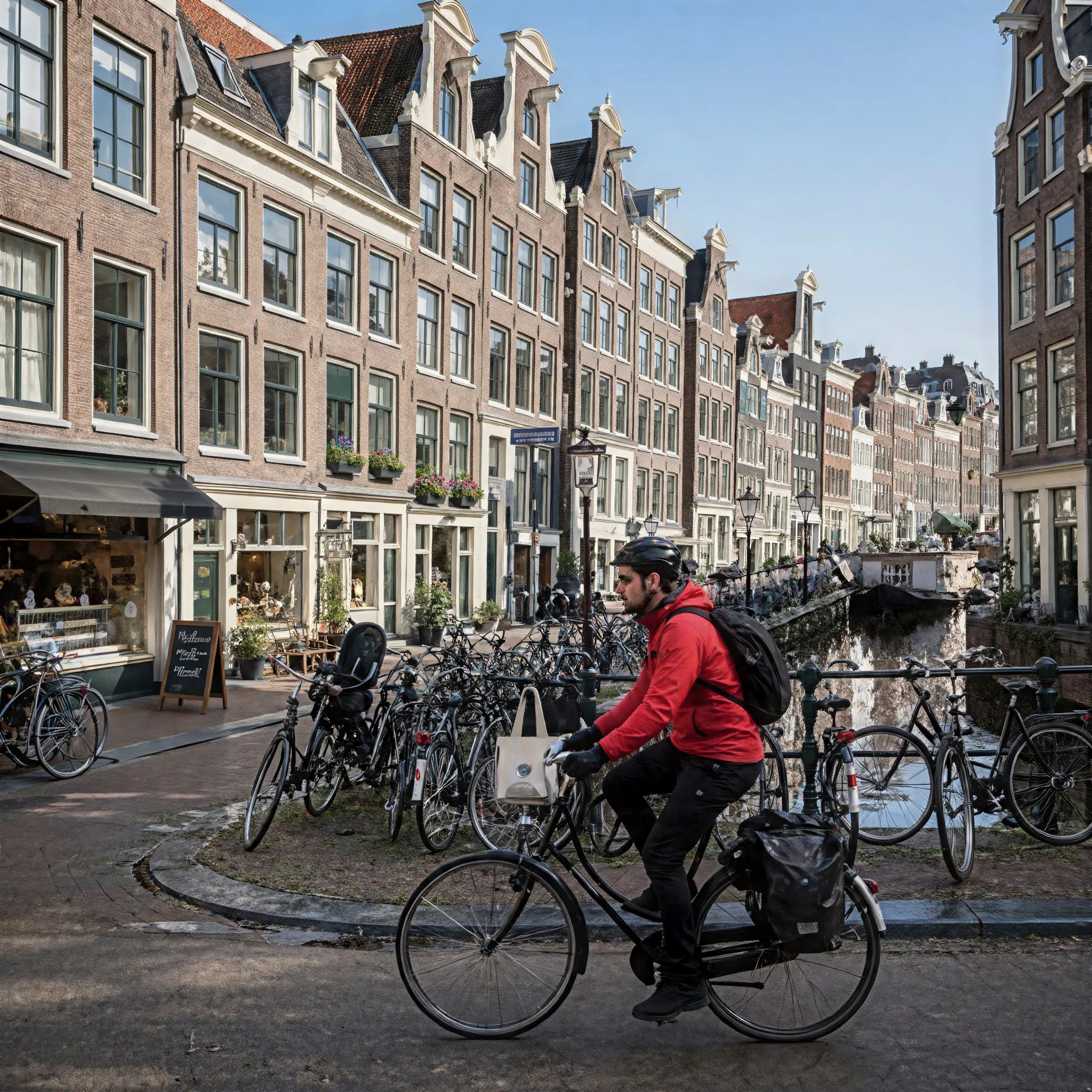
Out-of-focus Amsterdam street with a cyclist, sharpened with the AI image upscaler after enhancement and upscaling
02 · Image Generation

Generate Images in 4K

Turn a prompt or a reference image into anything from photoreal shots to illustration.

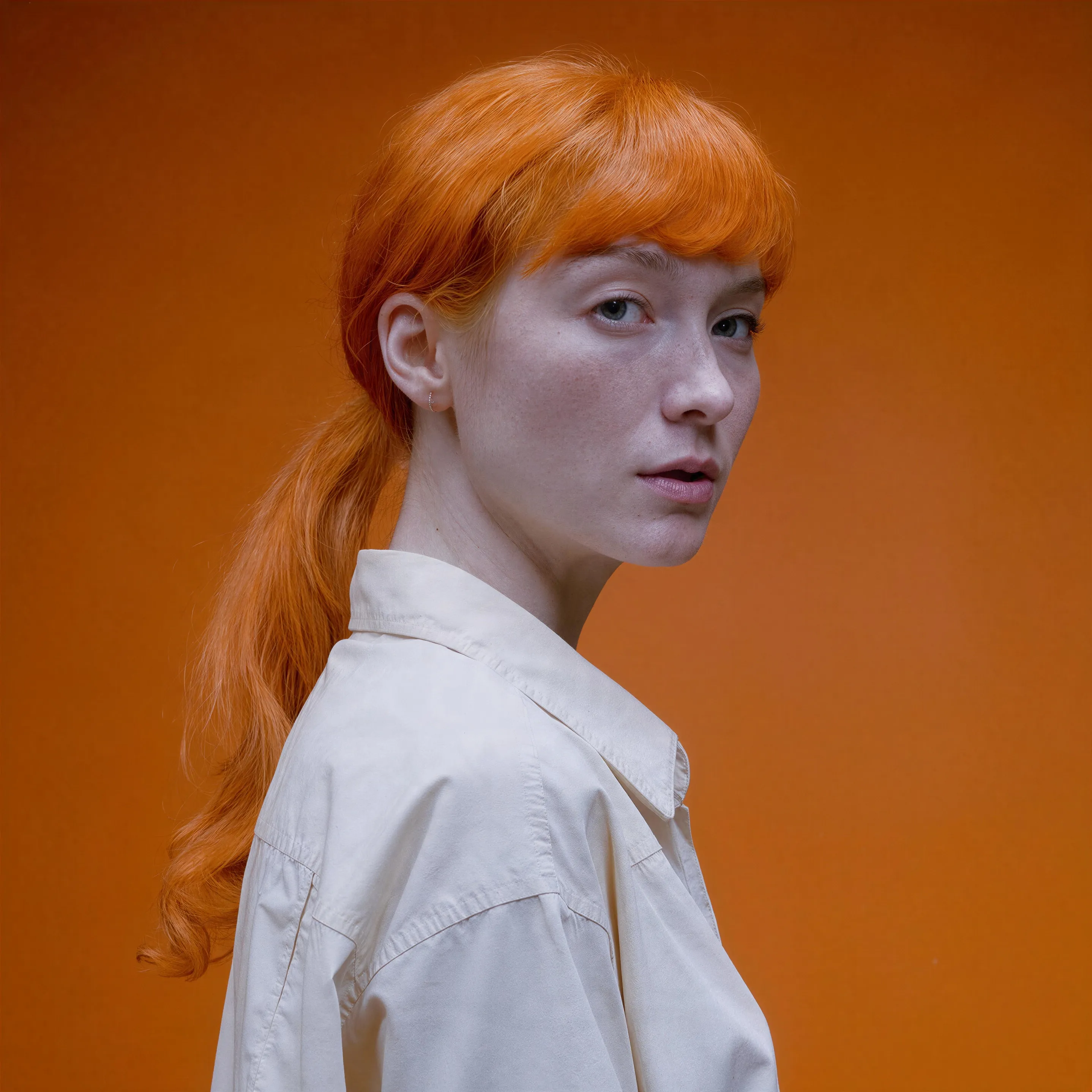
Red-haired portrait made with the AI image generator, upscaled with Upsampler
03 · Image Editing

Edit Images at Full Resolution

Change anything with a text prompt and get the result back at your photo's full size.

Before
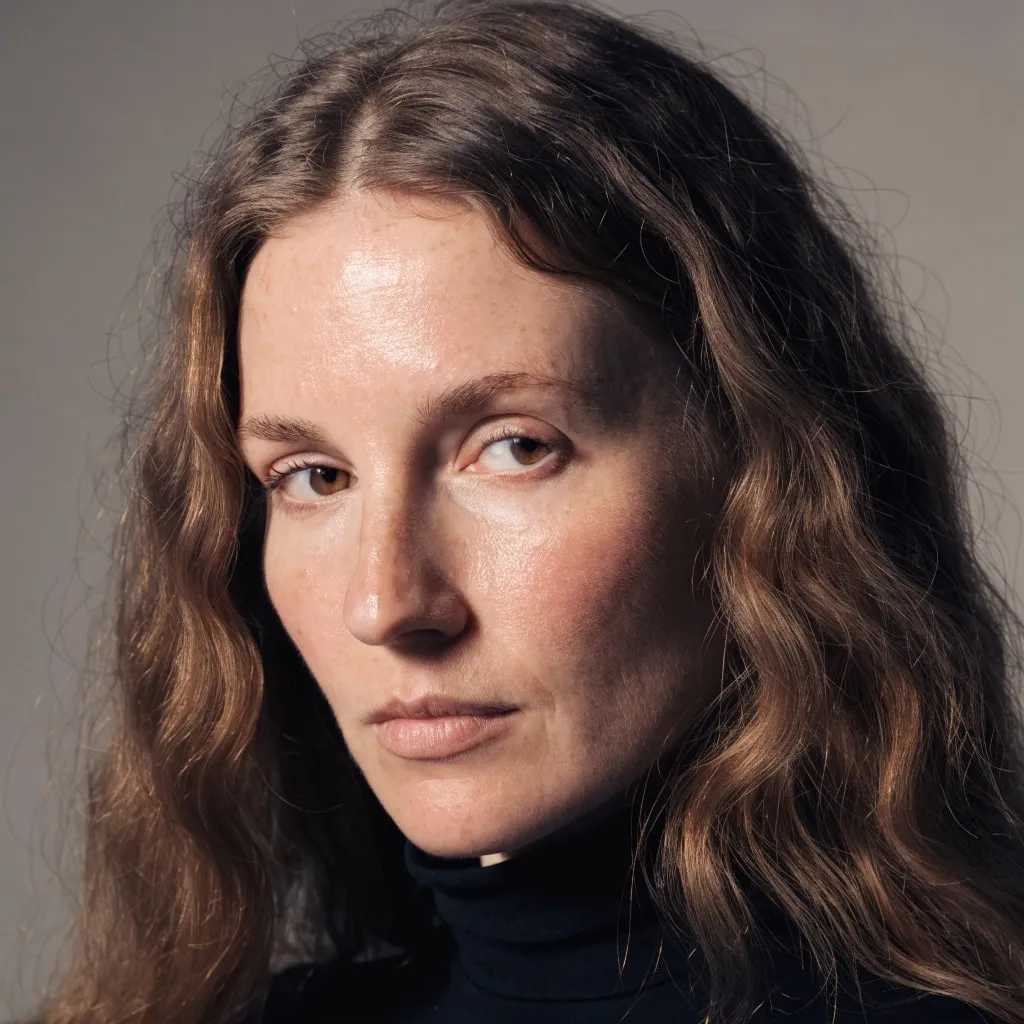
Portrait of a woman with long wavy brown hair, changed to a platinum blonde bob with an AI edit before enhancement and upscaling
After
Portrait of a woman with long wavy brown hair, changed to a platinum blonde bob with an AI edit after enhancement and upscaling
04 · Video Generation

Generate Videos in Full HD

Create clips from a prompt or bring a still image to life.

05 · Video Upscaling

Upscale Videos to 4K

Sharpen edges, textures, and on-screen text frame by frame, with stable motion.

Enhance text in an image without rewriting it

Text is where upscalers get caught. A slightly invented leaf is invisible, but a slightly invented letter turns a word into nonsense. That is why this page is a separate preset of the free AI image upscaler: the general tool leads with a diffusion model that rebuilds texture and can redraw small print into convincing lookalike glyphs. This page offers the same three models, but it defaults to GAN, which is faithful. GAN and Real-ESRGAN enhance text in an image by sharpening the strokes that are already there, keeping the font, the stroke weight, and the contrast against the background, while multiplying the resolution 4x.

If what you really need is the words themselves as editable text, not a sharper picture of them, use the free image to text tool instead, or upscale here first and then extract, since cleaner strokes help text recognition on small print.

Make blurry text readable: how to use it

Upload a screenshot, a scan, a photo of a sign or a whiteboard, or an infographic, in JPG, PNG, or WebP up to 2048 px per side. Press Sharpen Text and the result appears on a comparison slider at 4x the size. Zoom into the smallest line of text: that is the honest test of any upscaler.

GAN is the default and gives the crispest letter edges, especially on small sources. Real-ESRGAN is worth a second try when the text sits in a compressed JPEG, because it was trained to remove the fuzzy halo that compression leaves around sharp edges, which is often what makes small text hard to read. Seed VR 2 Small is the third option: it can help on a very soft or heavily compressed source, but it can redraw letters and always returns about 2 megapixels, so treat it as a last resort for lettering. Face restoration is switched off on this page, since it has nothing to do with letters.

Lossless sources give the best results. A PNG screenshot beats the same screenshot re-saved as a JPEG, and a scan made at a higher resolution beats a phone photo taken at an angle. When you must work from a photo, crop to the text area first so the size limit is spent on the letters.

Photos of documents benefit from a little preparation. Straighten the page so lines of text run horizontally, crop away the desk and your fingers, and use the brightest, most even light you can when you take the picture: shadows across a page lower the contrast of the letters, and an upscaler sharpens contrast that exists rather than creating it. For receipts and thermal paper, which fade fast, take the photo or scan as soon as possible. For a multi-page document, upscale the pages one at a time, then assemble them into a PDF with your usual tool. A sharp 4x page also makes a much better printout than the original small image, since small text no longer prints as grey smudges.

Sharpen text in screenshots, scans, and signs

Screenshots for documentation, slides, and bug reports are the easiest case: they are already sharp at their own size, and a 4x upscale keeps menus, code, and small UI labels crisp when shown large on a projector or a high-density screen. Scanned contracts, receipts, and archive pages gain cleaner, darker strokes that are easier to read and to print. Photos of signs, storefronts, and menus come out with lettering that holds up when zoomed. Infographics and charts that were reshared until they went soft get their labels back.

Before you publish or file anything, proofread it. GAN and Real-ESRGAN do not swap characters, but when the source letters were ambiguous, a smudged 8 that could be a 6, the upscale will sharpen the ambiguity rather than resolve it.

What it cannot recover

An upscaler can only sharpen information that is still in the pixels. If the letters are distinguishable in the source, even barely, they will come back clearer. If compression or blur has already merged them into blobs, no faithful model can tell which letters they were, and a model that claims to would be guessing. Text a few pixels tall in a wide photo, such as a distant license plate or a page seen across a room, is usually beyond recovery.

For best results, start from the original file, avoid repeated screenshots, and keep the downloaded result as is rather than re-saving it as a low-quality JPEG. Images are processed transiently and are not stored.

If a screenshot only needs to be bigger for a slide, the 4x result can be scaled down to the exact size you need in any editor and will still look sharper than the original enlarged directly.

Frequently Asked Questions

Drop the image into the tool above and press Sharpen Text. GAN, the faithful default, enlarges it 4x and keeps every character, and you can download it with no sign-up and no watermark.

Yes, with the default. GAN and Real-ESRGAN sharpen the strokes that are there and never substitute characters. Seed VR 2 Small can redraw letters, so keep it as a last resort for very soft sources. Letters that were already merged together in the source cannot be told apart, so proofread small print.

When the letters are still distinguishable in the source, yes: edges get sharper and the halo from compression goes away. Text that blur has turned into smudges cannot be recovered by any honest upscaler.

Screenshots are an ideal source because they are usually lossless. Menus, code, and small labels come out crisp at 4x, which is useful for documentation and slides.

Often. Cleaner, larger strokes help text recognition on small print. Upscale here, then extract the words with the free image to text tool.

Images up to 2048 px per side in JPG, PNG, or WebP. GAN and Seed VR 2 Small run on shared free GPUs with a daily allowance of free GPU time, and connecting a free Hugging Face account raises it. Real-ESRGAN runs on your own device with no daily limit.

No. Images are processed transiently for the upscale and expire automatically. They are never shown in a gallery or used for training.

No. Your download is the clean, full-quality result with no watermark, and you never need an account or email to get it.

Yes. The tool runs open models released under the Apache 2.0 and BSD 3-Clause licenses, and none of them claims any rights over the output you generate, so the model puts no claim on what you make, in commercial work or anywhere else. What the model does not decide is your right to the material you feed it: anything you upload stays subject to whoever holds the rights in it, and the usual limits apply either way. Do not use the tools to create illegal content, to impersonate real people, or to infringe someone else's rights.

No, credit is never required. If you publish the result on a website, blog or social post, a link back to this tool is appreciated and helps keep it free: press Copy credit link under your result and paste the ready-made link wherever you post it.

No. Sexually explicit content and anything involving minors are prohibited and cannot be unlocked on any plan, and every upload and prompt sent to our free GPUs is screened by an automated safety filter before it runs. Our Terms of Service list the full set of prohibited content.