

Free AI Text Remover | No Sign-Up

Remove text from images with AI: captions, labels, signs, dates, and handwriting disappear and the surface underneath is rebuilt. No sign-up, no watermark.

  • No account
  • No ads
  • No watermark
Examples · tap to try

Drop an image and press Remove Text. The AI finds the lettering, erases it, and fills each spot with the texture, color, and lighting around it, so the surfaces look like they were never written on.

More Free Tools

Discover more free tools to enhance your creative projects, no account required.

Our Premium Tools

Access highly advanced AI tools with flexible pricing: subscription or one-time payment.

Muse ImageNano Banana 2Nano Banana 2.1GPT Image 2GPT Image 2.5 FlareGPT Image 2.5 SunburstGPT Image 2.6 FlareGPT Image 2.6 SunburstGrok Imagine Image 2Nano Banana 2 LiteNano Banana ProSeedream 4Seedream 5 ProSeedream 5.5GPT Image 1.5Flux 3Qwen Image 3Qwen Image 2 ProGrok Imagine ImageP-Image IdeogramKrea 2Krea 3MAI Image 2.5Nano BananaImagen 4Seedream 3Seedream 4.5Seedream 5 FlashSeedream 5 LiteFlux 2 KleinFlux 2 ProFlux 2 MaxFlux 3 KleinZ Image TurboQwen Image 2Recraft V4.1Ideogram V4Ideogram V4.5Imagen 3Flux Kontext ProFlux Kontext MaxQwen ImageRecraft V4Ideogram V3Flux SchnellFlux 1.1 ProWan 2.2Recraft V3P Image UpscaleSeed VR 2FluxStable DiffusionGANFlux Fill ProQwen Edit 2511Qwen EditFlux Kontext FastMiniMax H3 Max TurboMiniMax H3Seedance 2.5Wan 3.0Gemini Omni 1.2 FlashMiniMax H3 LiteGrok Imagine VideoGrok Imagine Video 1.5P-Video 2 ProSeedance 1 ProSeedance 1.5 ProSeedance 2 MiniWan 2.7Kling 2.5 ProVeo 3.1 (No Audio)LTX 2.5 FastP-Video 2P-VideoKling 4.0 FlashRunway Gen 4.5P-Video 2 DraftWan 2.2 14B ProP-Video DraftLTX 2.5SeedVR 2RelayVSRRTX VSR
01 · Image Editing

Edit Images at Full Resolution

Change anything with a text prompt and get the result back at your photo's full size.

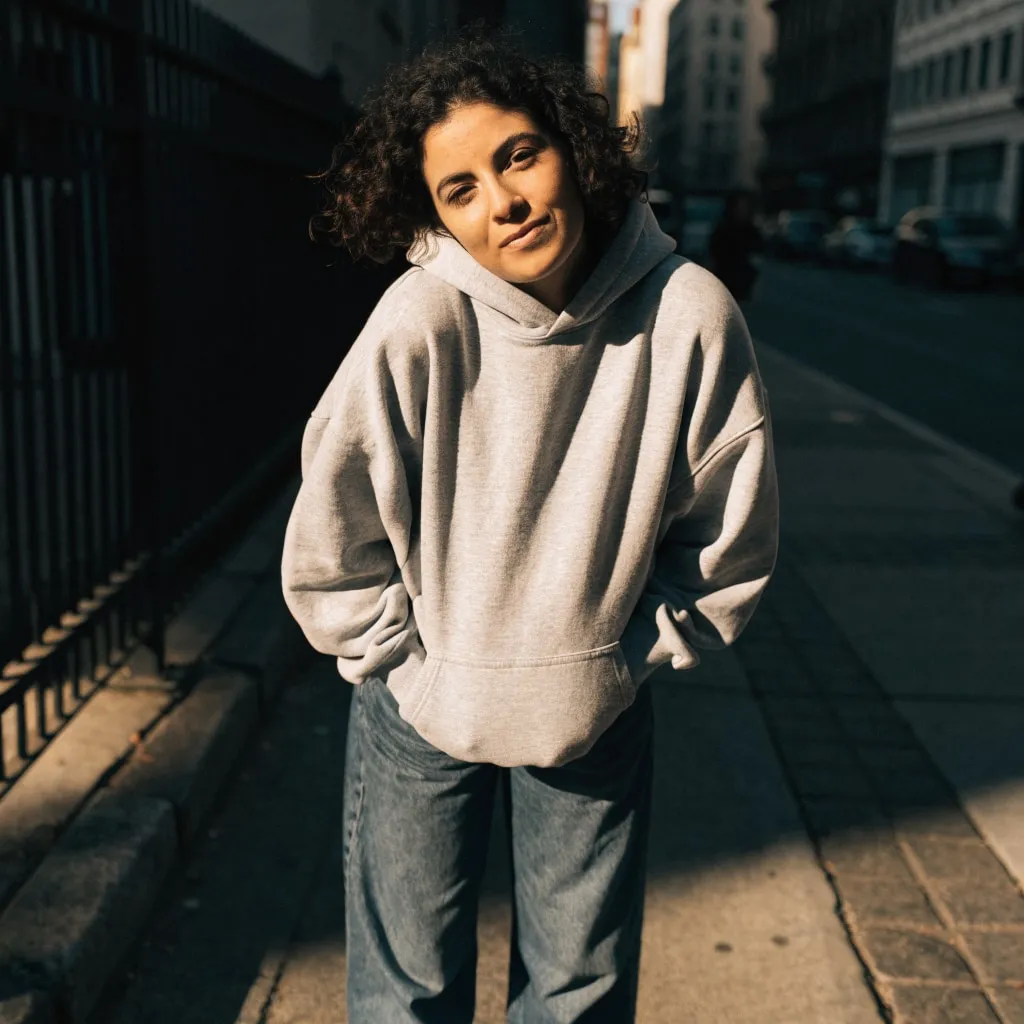
Before
Woman in a grey hoodie on a city sidewalk, changed into a red satin evening dress with an AI edit before enhancement and upscaling
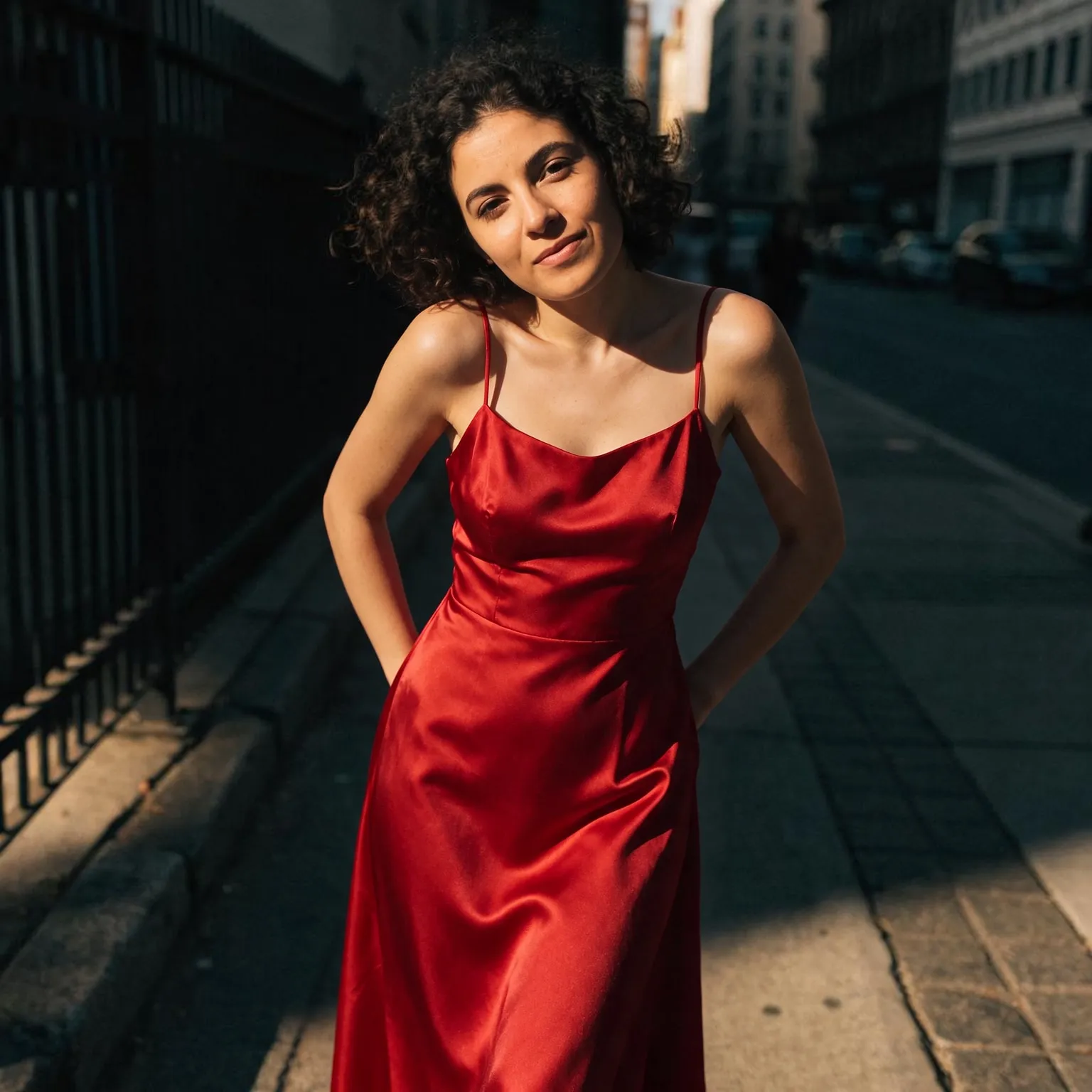
After
Woman in a grey hoodie on a city sidewalk, changed into a red satin evening dress with an AI edit after enhancement and upscaling
02 · Image Upscaling

Upscale Images to 100 MP

Add real detail as you enlarge.

Before
Modern living room upscaled with the AI image upscaler before enhancement and upscaling
After
Modern living room upscaled with the AI image upscaler after enhancement and upscaling
03 · Image Generation

Generate Images in 4K

Turn a prompt or a reference image into anything from photoreal shots to illustration.

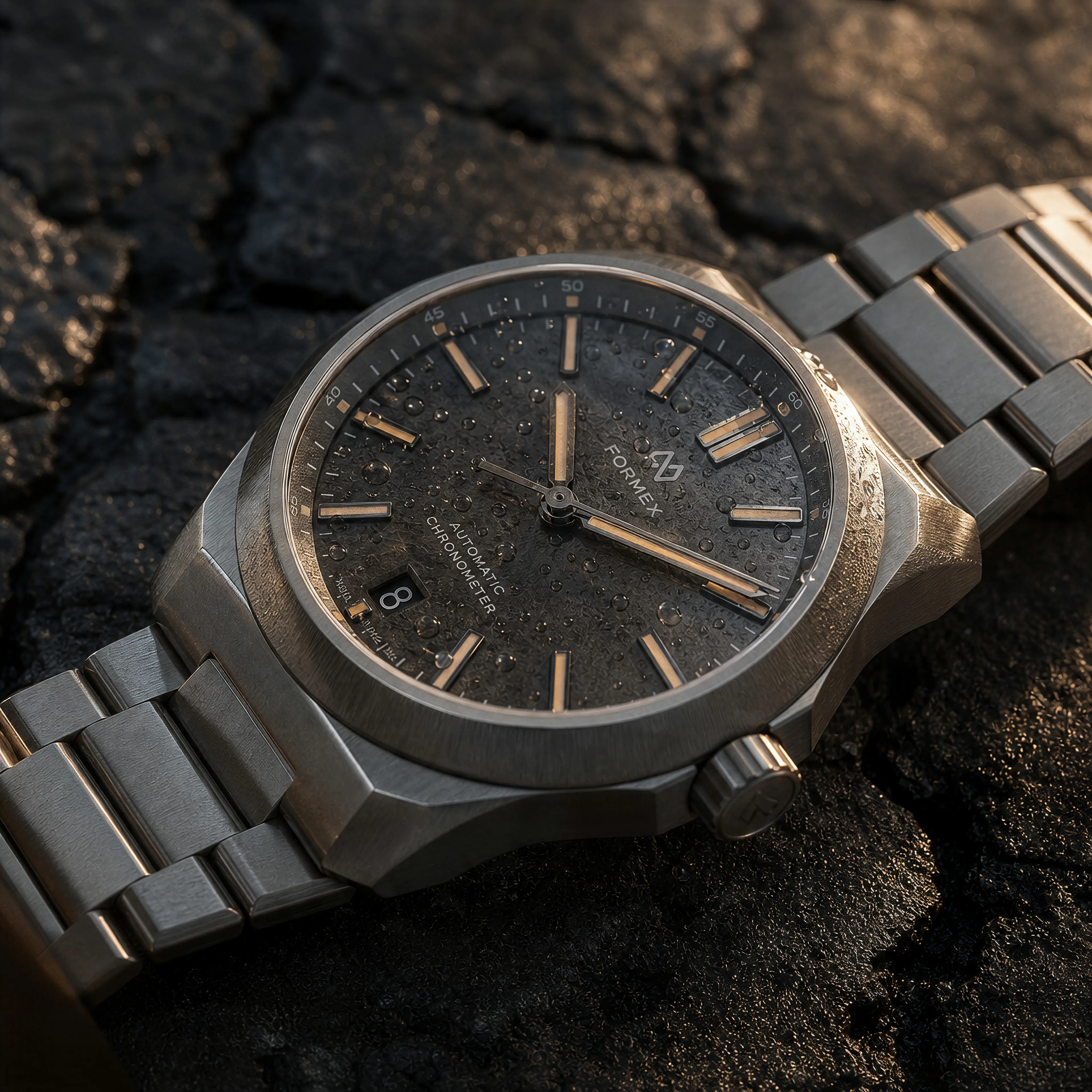
Brushed titanium wristwatch on cracked black volcanic stone, made with the AI image generator and upscaled with Upsampler
04 · Video Generation

Generate Videos in Full HD

Create clips from a prompt or bring a still image to life.

05 · Video Upscaling

Upscale Videos to 4K

Sharpen edges, textures, and on-screen text frame by frame, with stable motion.

Remove text from an image without a trace

This page is built for one job: to remove text from an image and leave a clean surface behind. Captions burned into a meme, a date stamp in the corner of a scan, price stickers on a product shot, street signs in a travel photo, scribbles on a whiteboard: the AI reads every block of lettering, erases it, and paints the surface underneath back in. It is the sibling of the free AI watermark remover, which hunts for semi-transparent logos and stamps laid over a whole picture. Here the target is text that belongs to the scene or the layout, and the rebuild has to match the paper, wall, sky, or fabric it was printed on.

Classic content-aware fill smears neighboring pixels into the gap and leaves a blurry patch where the words were. Qwen Image Edit, the open model behind this tool, understands what the surface is supposed to be, so a brick wall keeps its mortar lines, a gradient stays smooth, and a shirt keeps its folds where the slogan used to be.

Because the AI looks at the whole picture rather than a small patch, it also copes with text that crosses several surfaces at once, such as a caption running from a sky into a building, or a label that wraps around a bottle. Each surface is rebuilt in its own texture, and edges between them stay crisp.

What you can use a text remover for

Most requests fall into a few groups. Designers clean reference photos and mockups before adding their own copy. Sellers remove old prices, stickers, and handwritten notes from product photos. Teachers and students strip answers off scanned worksheets so they can be reused. Families clean the orange date stamps that old cameras printed onto prints. Social media editors take the captions off a meme template so it can carry a new joke.

If what you need is new words in place of the old ones, paint over the text in the free AI inpainting tool and describe the new wording; short words work best. To erase something that is not text, a person in the background or a power line across the sky, the free AI object remover takes a plain-language description of the object instead.

Screenshots are a common case too. Clearing the words off an app screen, a chart, or a slide leaves a clean layout you can annotate again, and flat interface colors are the easiest surfaces of all to rebuild. Scanned book pages, product packaging, posters on a wall, and photos of shop fronts all work the same way: upload, press the button, compare.

How the AI rebuilds what was under the text

The model treats every letter as an object sitting on a surface. It removes the strokes, looks at the surrounding area for texture, pattern, lighting, and perspective, then generates the missing patch so it continues seamlessly. Thin captions over a plain background are the easy case and usually come out perfect. Large bold text across a face, a detailed pattern, or a busy scene asks the AI to invent what was hidden, so look at those areas closely before you publish the result.

Results also depend on how much text there is. A single caption or a few labels clear up cleanly in one pass. A page that is mostly text, like a dense flyer or a menu, asks the model to rebuild large areas at once, and some regions may come back plain rather than exactly as the original paper or print looked. If a few letters survive, run the cleaned image through the tool a second time; each pass starts fresh.

The tool removes all the text it finds. If you want to keep a logo or one specific line, the premium editor described above lets you paint the exact area instead. Only edit images you own or have permission to change; removing a credit line or a copyright notice from someone else's work does not give you the right to use it.

Limits and output size

Upload JPG, PNG, or WebP images up to 4096 pixels per side. The cleaned image is re-rendered at about one megapixel, which is plenty for social posts and screens; run it through the free AI image upscaler afterwards when you need a bigger file. Every visitor gets a daily allowance on shared free GPUs with no account, and connecting a free Hugging Face account raises it. Images are processed transiently, are never shown in a gallery, and are never used for training.

Frequently Asked Questions

Upload the image above and press Remove Text. The AI erases every caption, label, and piece of lettering it finds and rebuilds the background, then shows a before/after slider. No sign-up, no watermark.

The watermark remover targets overlaid logos and semi-transparent stamps tiled across a picture. This tool targets text that is part of the image: captions, signs, labels, date stamps, and handwriting.

Not on this page: it removes all the text it finds. To erase one specific area, paint it in the free AI inpainting tool and leave the description empty, and only the painted area changes.

Yes, for short words. Paint over the text in the free AI inpainting tool and describe the new wording; only the painted area changes. Long or very small lettering may come back slightly different from what you typed.

Yes. Handwritten notes, pen marks, and printed text on scanned pages are all removed, and the paper texture is rebuilt underneath. Very dense pages can lose some fine paper detail, so check the result.

Results come back around one megapixel. For a larger file, run the cleaned image through the free AI image upscaler.

Each visitor gets a daily allowance on the shared free GPUs, refreshed every day, with no sign-up. Connecting a free Hugging Face account raises the allowance.

No. Images are processed transiently on the GPU, expire automatically, and never appear in a gallery or a training set.

No. Your download is the clean, full-quality result with no watermark, and you never need an account or email to get it.

Yes. The tools run open models, and none of their licenses claims any rights over the output you generate, so the model puts no claim on what you make, in commercial work or anywhere else. What the model does not decide is your right to the material you feed it: anything you upload stays subject to whoever holds the rights in it, and the usual limits apply either way. Do not use the tools to create illegal content, to impersonate real people, or to infringe someone else's rights.

No, credit is never required. If you publish the result on a website, blog or social post, a link back to this tool is appreciated and helps keep it free: press Copy credit link under your result and paste the ready-made link wherever you post it.

No. Sexually explicit content and anything involving minors are prohibited and cannot be unlocked on any plan, and every upload and prompt sent to our free GPUs is screened by an automated safety filter before it runs. Our Terms of Service list the full set of prohibited content.