Free AI Inpainting and Generative Fill | No Sign-Up

Paint over any part of a photo and describe what should appear there. AI inpainting fills only the painted area; every pixel outside it stays exactly as it was. No sign-up.

  • No account
  • No ads
  • No watermark
Examples · tap to try

Drop an image, paint over the area to change, describe what should go there, and press Fill Area. Leave the description empty to erase the painted area instead. Undo and Clear mask fix a stroke.

More Free Tools

Discover more free tools to enhance your creative projects, no account required.

Our Premium Tools

Access highly advanced AI tools with flexible pricing: subscription or one-time payment.

Muse ImageNano Banana 2Nano Banana 2.1GPT Image 2GPT Image 2.5 FlareGPT Image 2.5 SunburstGPT Image 2.6 FlareGPT Image 2.6 SunburstGrok Imagine Image 2Nano Banana 2 LiteNano Banana ProSeedream 4Seedream 5 ProSeedream 5.5GPT Image 1.5Flux 3Qwen Image 3Qwen Image 2 ProGrok Imagine ImageP-Image IdeogramKrea 2Krea 3MAI Image 2.5Nano BananaImagen 4Seedream 3Seedream 4.5Seedream 5 FlashSeedream 5 LiteFlux 2 KleinFlux 2 ProFlux 2 MaxFlux 3 KleinZ Image TurboQwen Image 2Recraft V4.1Ideogram V4Ideogram V4.5Imagen 3Flux Kontext ProFlux Kontext MaxQwen ImageRecraft V4Ideogram V3Flux SchnellFlux 1.1 ProWan 2.2Recraft V3P Image UpscaleSeed VR 2FluxStable DiffusionGANFlux Fill ProQwen Edit 2511Qwen EditFlux Kontext FastMiniMax H3 Max TurboMiniMax H3Seedance 2.5Wan 3.0Gemini Omni 1.2 FlashMiniMax H3 LiteGrok Imagine VideoGrok Imagine Video 1.5P-Video 2 ProSeedance 1 ProSeedance 1.5 ProSeedance 2 MiniWan 2.7Kling 2.5 ProVeo 3.1 (No Audio)LTX 2.5 FastP-Video 2P-VideoKling 4.0 FlashRunway Gen 4.5P-Video 2 DraftWan 2.2 14B ProP-Video DraftLTX 2.5SeedVR 2RelayVSRRTX VSR
01 · Image Editing

Edit Images at Full Resolution

Change anything with a text prompt and get the result back at your photo's full size.

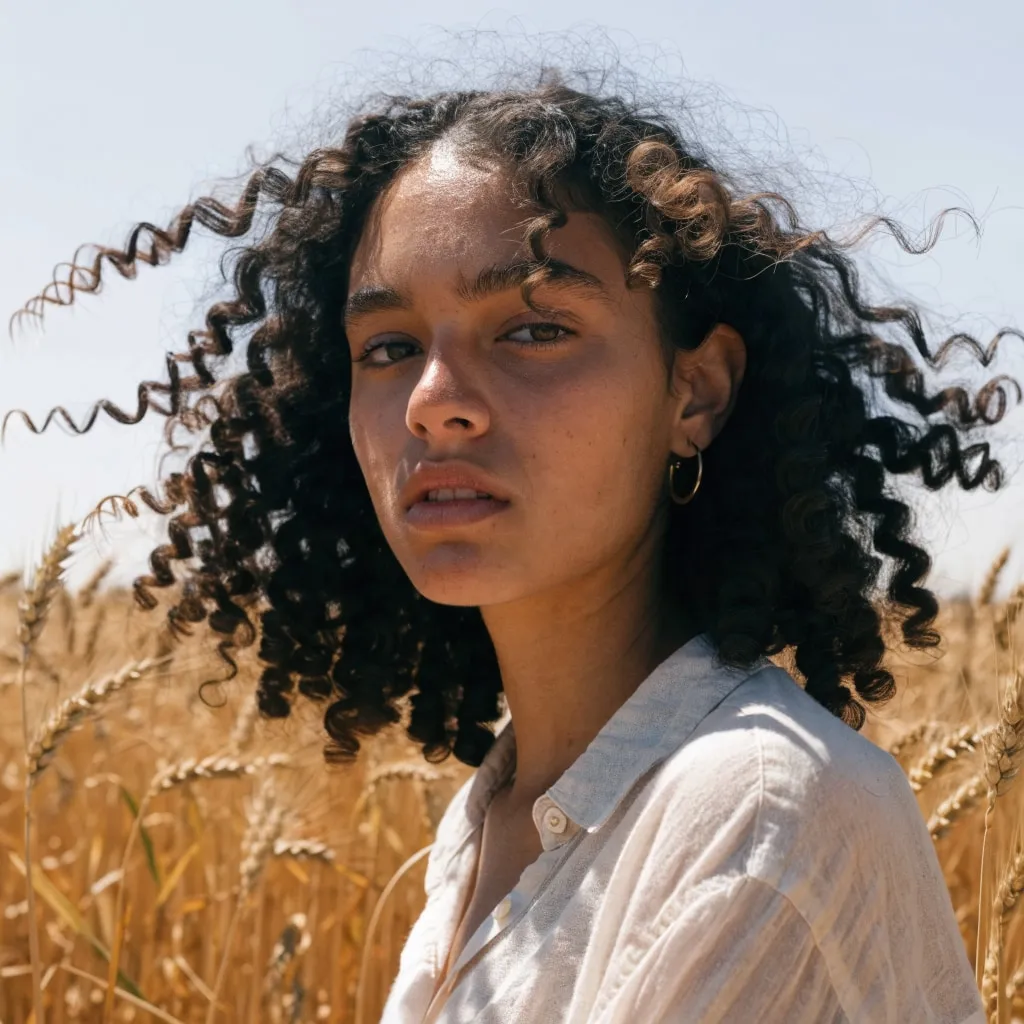
Before
Portrait of a woman in a wheat field, relit from flat midday sun to golden hour with an AI edit before enhancement and upscaling
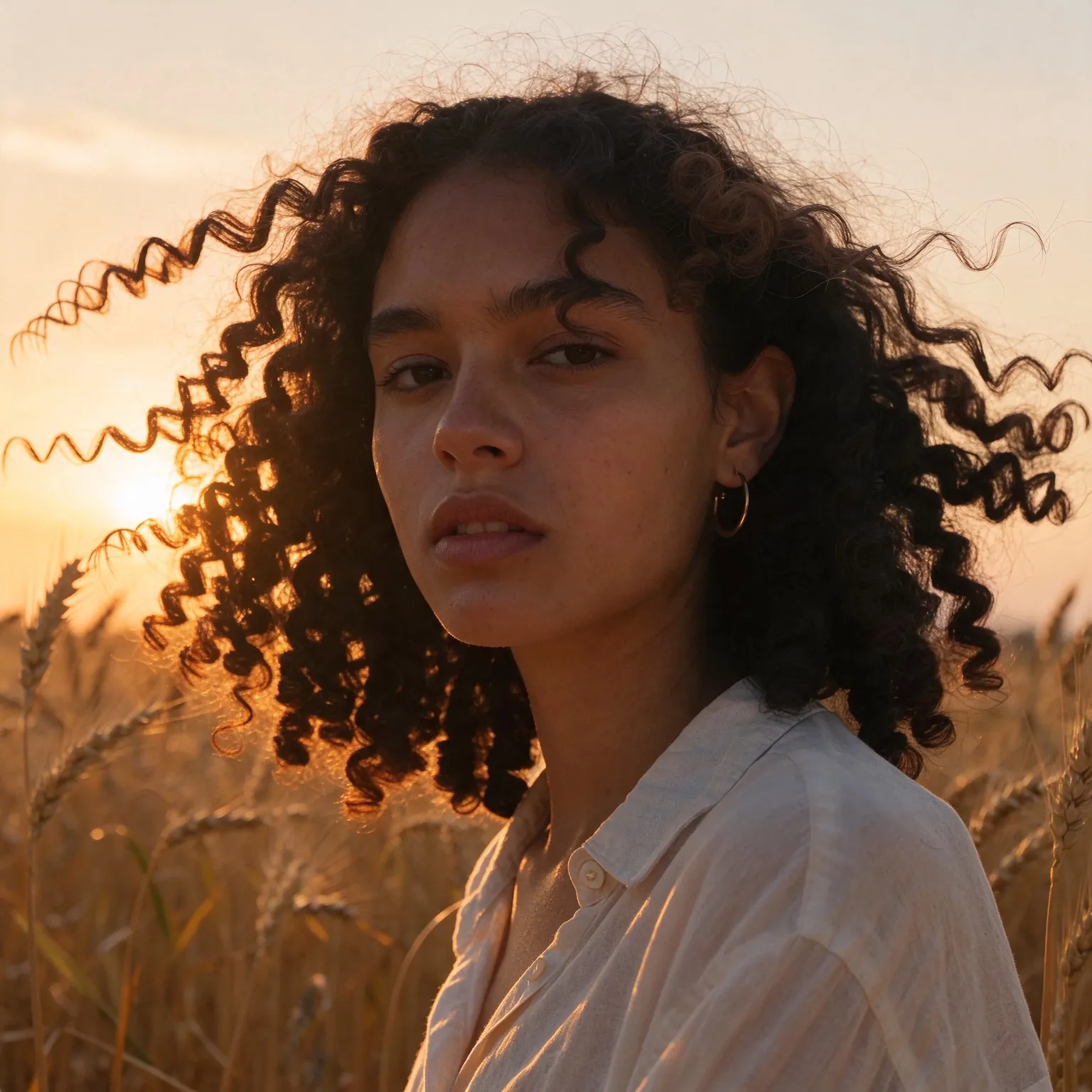
After
Portrait of a woman in a wheat field, relit from flat midday sun to golden hour with an AI edit after enhancement and upscaling
02 · Image Upscaling

Upscale Images to 100 MP

Add real detail as you enlarge.

Before
AI painting of a cloud whale over a lighthouse, upscaled with the AI image upscaler before enhancement and upscaling
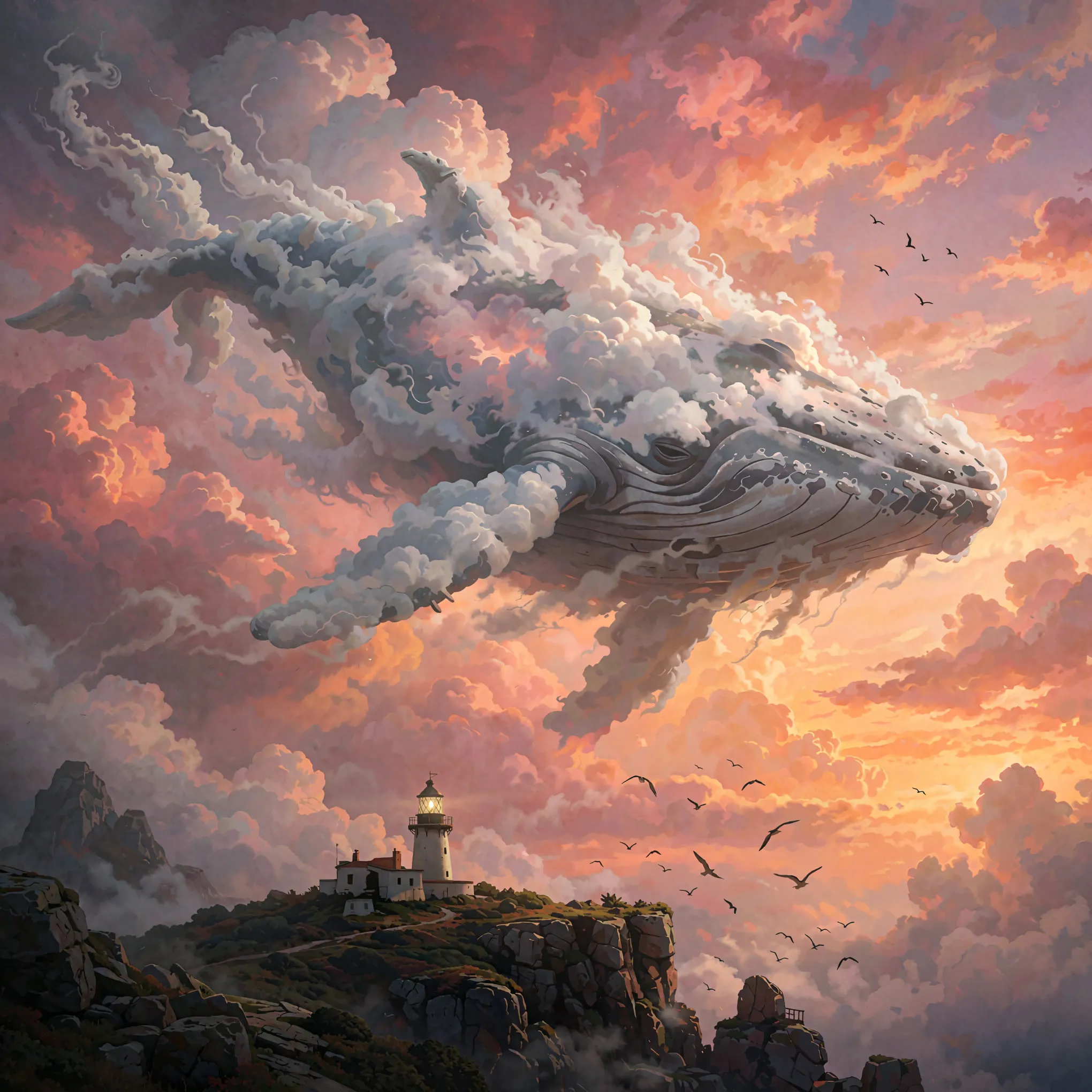
After
AI painting of a cloud whale over a lighthouse, upscaled with the AI image upscaler after enhancement and upscaling
03 · Image Generation

Generate Images in 4K

Turn a prompt or a reference image into anything from photoreal shots to illustration.

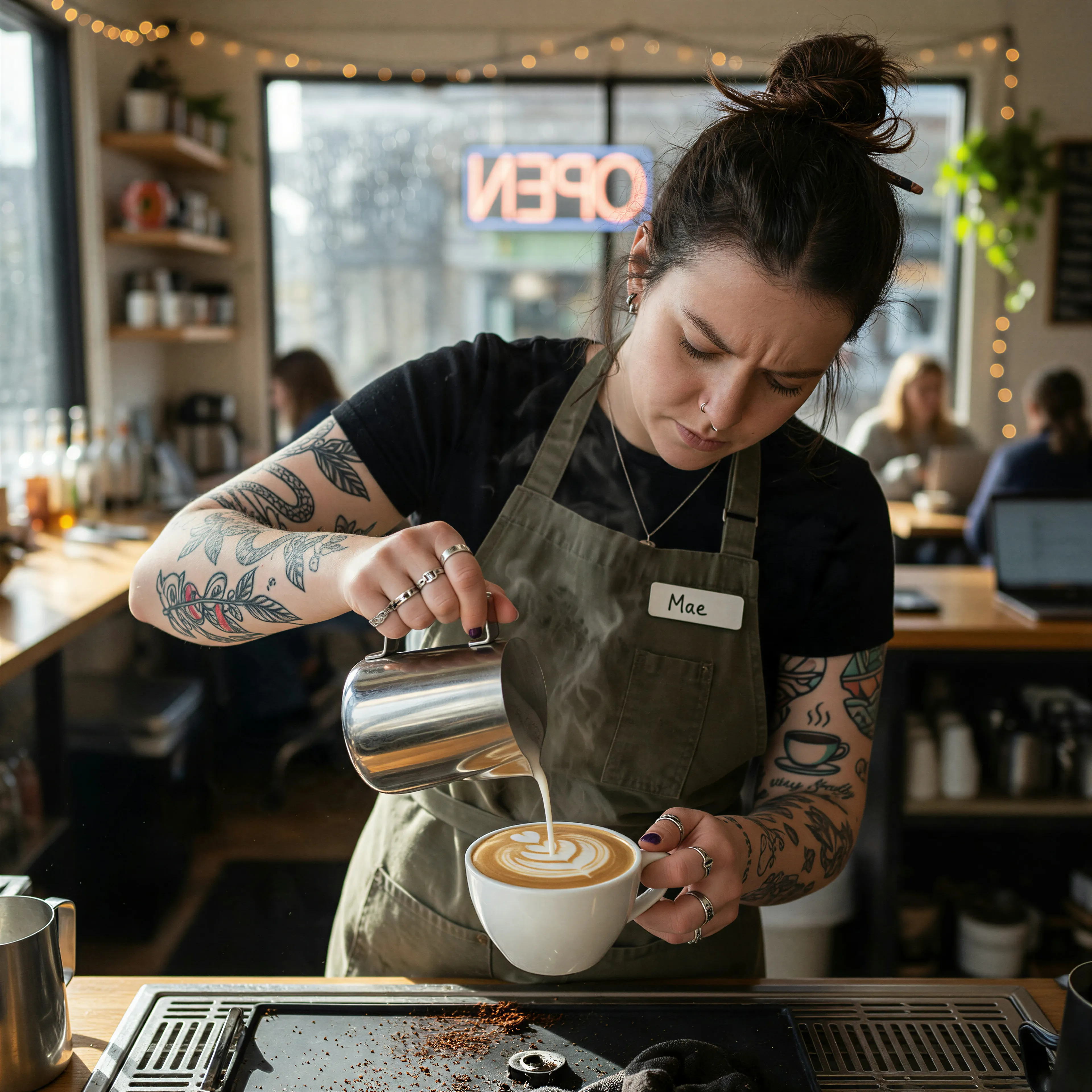
Barista with tattooed forearms pouring latte art, made with the AI image generator and upscaled with Upsampler
04 · Video Generation

Generate Videos in Full HD

Create clips from a prompt or bring a still image to life.

05 · Video Upscaling

Upscale Videos to 4K

Sharpen edges, textures, and on-screen text frame by frame, with stable motion.

Free AI inpainting: paint it, describe it, done

Inpainting means repainting one part of an image while leaving the rest untouched, and this free AI inpainting tool makes it a two-step job: brush over the area, then write what should be there. A bare wall gets a framed painting, an empty table gets a vase of flowers, a cloudy patch of sky turns clear, a stain on a shirt disappears. It differs from the free AI object remover, where you describe an object in words and the AI finds and erases it anywhere in the picture. Here you decide exactly where the change happens, and you can add something new instead of only removing.

Leave the description empty and the tool acts as an eraser for the painted area, filling it with the background that naturally continues around it. That makes it a precise generative fill for the cases where an object remover would grab the wrong thing.

Typical jobs include adding a missing object to a product shot, replacing a distracting sign with plain wall, fixing a gap in a fence, giving a person a different hat, changing a single flower into a different variety, or filling a hole left after cropping out a photobomber. Each one comes down to the same two steps: paint the spot, then say what it should become.

How the generative fill keeps the rest of your photo intact

Qwen Image Edit, the open model that does the painting, edits a whole picture at about one megapixel and takes no mask of its own. So the tool works around it in your browser. It cuts out the painted area with some room around it for context, marks the painted part on that crop, asks the model to replace exactly that marked area with your description, and then pastes the model's new content back into your original over the painted area, with a thin soft edge just outside it so the two blend. Everything beyond that edge is your original file, pixel for pixel, at its full resolution.

Because only the crop goes to the model, a small edit on a large photo gets the model's full resolution instead of a shrunken copy of the whole frame. The only part that comes from the model is the painted area. A mask that covers most of a big photo is sent whole, and then the filled region can look slightly softer than its surroundings. Small and medium masks blend best.

The soft edge sits just outside the painted area, so whatever the model draws right up to your brush stroke stays crisp. It is a few pixels wide: enough to hide the seam, narrow enough that a face or a line of text next to the mask is barely touched. If something new looks cut off, paint the area slightly larger and run it again.

Tips for a clean image filler result

Paint slightly past the edges of what you want to change; a tight mask leaves a thin outline of the old content. Use the brush size slider for small details, and Undo for a stray stroke. Describe the new content plainly and include how it should sit in the scene, for example "a green potted plant on the floor, lit from the window". The model blends lighting and perspective on its own, but naming them helps.

Keep each fill to one idea. To change two separate areas, run the tool twice, downloading in between. For edits that touch the whole image, such as a new style or new lighting, the free AI image editor takes a freeform instruction, and to add new area beyond the borders of a photo, use the free AI image extender.

Some content is harder than others. Natural textures like grass, water, sky, and wood fill most convincingly, and simple objects like plants, lamps, and frames are reliable additions. Hands, faces, and readable text are the hardest things to paint into a small area; describe them simply and expect to run them more than once. Each run uses a fresh random seed, so repeated tries give you real variety to choose from.

Limits and privacy

The tool takes JPG, PNG, and WebP up to 4096 pixels per side and downloads the result as a PNG at your original size. Every visitor gets a daily allowance on shared free GPUs without an account, and connecting a free Hugging Face account raises it. Descriptions go through the same safety filter as every free prompt tool, and results are checked before they are shown. Images are processed transiently and deleted automatically.

Frequently Asked Questions

Upload an image, paint over the area you want to change, describe what should appear there, and press Fill Area. Only the painted area changes. No sign-up, no watermark.

No. The new content is pasted back into your original over the painted area, blended by a thin soft edge just outside it. Everything beyond that edge is your original pixels at full resolution.

It does the same kind of job: select an area, describe the content, and AI fills it to match the scene. You paint in your browser and the fill runs on shared free GPUs, with no account and within a daily free allowance.

Yes. Paint over it and leave the description empty; the area is filled with the surrounding background. For removal by description instead of painting, try the free AI object remover.

No. Painting the mask and blending the result happen in your browser, and the AI step runs on shared free GPUs. Any modern desktop or phone browser works.

Your original resolution, up to 4096 pixels per side. The model works on a crop around the painted area at about one megapixel, so small and medium masks stay sharp; very large masks on big photos can look slightly softer.

As many as your daily per-visitor allowance on the shared free GPUs covers, with no sign-up. A connected free Hugging Face account raises it.

No. They are processed transiently for the fill and expire automatically. Nothing is published or used for training.

No. Your download is the clean, full-quality result with no watermark, and you never need an account or email to get it.

Yes. The tools run open models, and none of their licenses claims any rights over the output you generate, so the model puts no claim on what you make, in commercial work or anywhere else. What the model does not decide is your right to the material you feed it: anything you upload stays subject to whoever holds the rights in it, and the usual limits apply either way. Do not use the tools to create illegal content, to impersonate real people, or to infringe someone else's rights.

No, credit is never required. If you publish the result on a website, blog or social post, a link back to this tool is appreciated and helps keep it free: press Copy credit link under your result and paste the ready-made link wherever you post it.

No. Sexually explicit content and anything involving minors are prohibited and cannot be unlocked on any plan, and every upload and prompt sent to our free GPUs is screened by an automated safety filter before it runs. Our Terms of Service list the full set of prohibited content.