An AI image extender for any aspect ratio
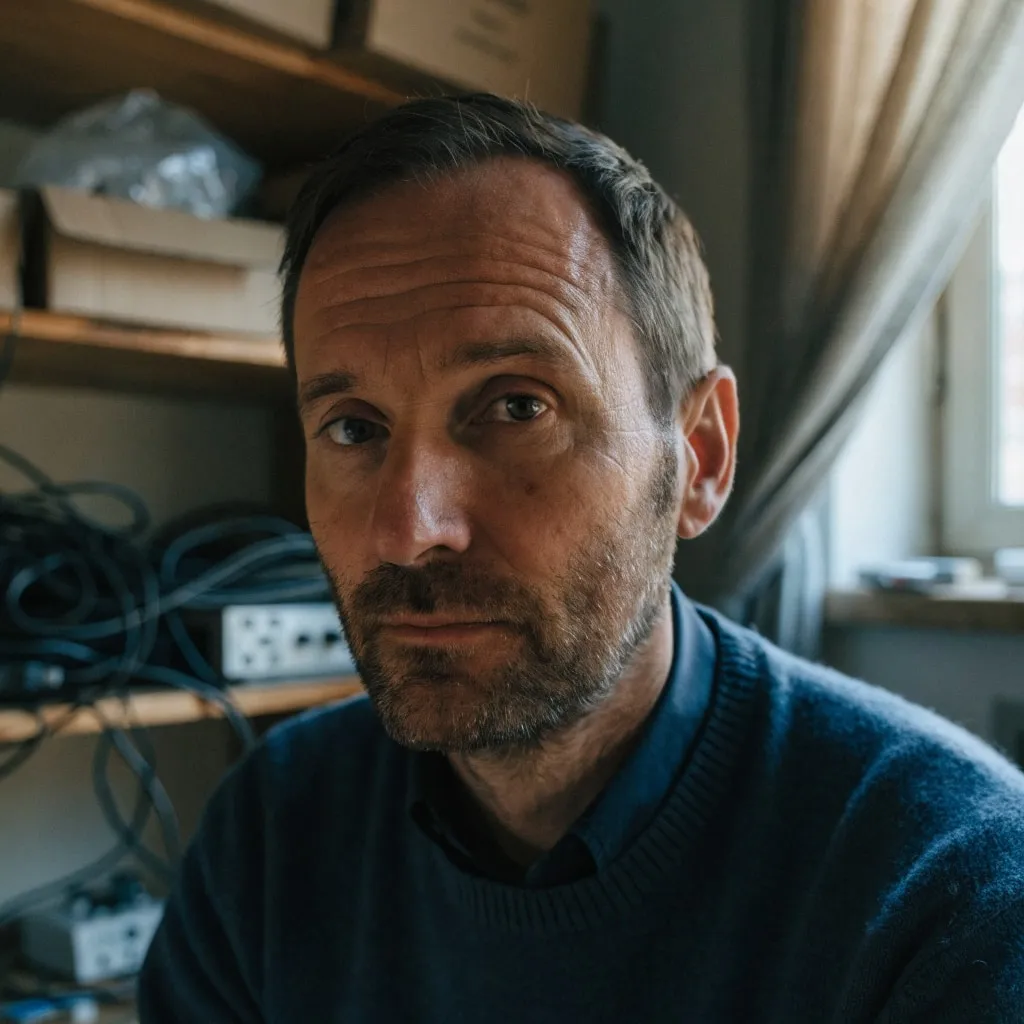
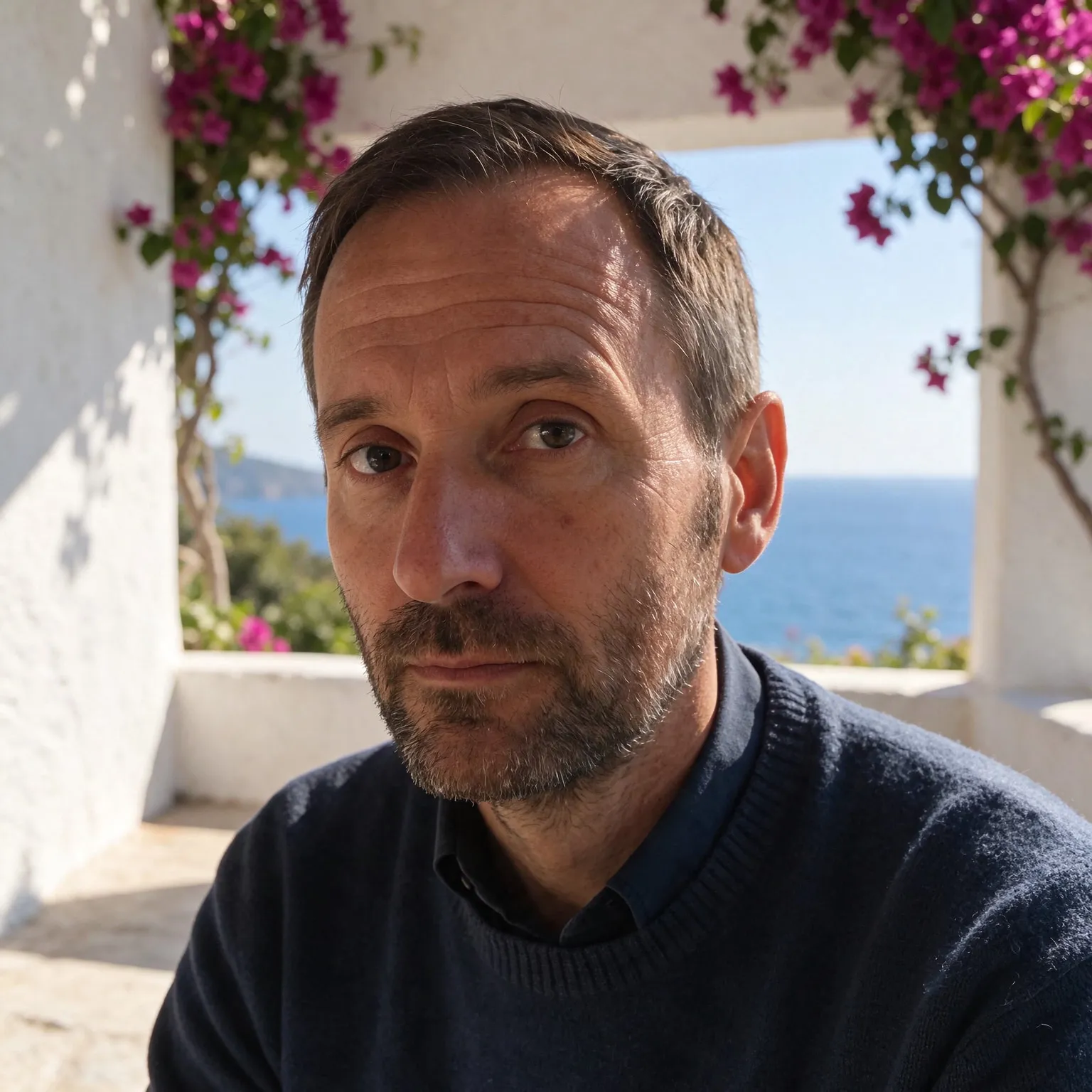
A portrait photo that has to fill a 16:9 slide, a landscape shot that needs to become a 9:16 story, a tight crop that should have more room around the subject: this AI image extender solves all of them by adding new picture beyond the original borders. Resizing would stretch the photo and cropping would cut it, which is what the free image resizer does when you need exact pixel dimensions. Extending is the opposite: nothing is lost, and the AI invents the missing sky, floor, wall, or landscape so the wider frame looks like it was shot that way.
Pick a target shape (16:9 widescreen, 9:16 story, 1:1 square, 4:5 portrait post, 3:2, 2:3, or a 21:9 banner) or zoom out by 1.5x or 2x on every side. For one-direction growth you also choose where the original sits: centered, or against the left or top edge, or the right or bottom edge, so the new area appears where you want it.
Typical uses: turning a vertical phone photo into a widescreen desktop wallpaper, giving a product shot more empty space for ad copy, fitting a landscape into a square social post without cropping the subject, widening a group photo where someone stood at the edge, or making a banner out of a regular photo. Social media editors use the 9:16 option to turn horizontal shots into stories and reels covers.
How AI outpainting extends an image without touching it
Extending an image is called outpainting: the mirror of inpainting, where the AI fills an area outside the picture instead of inside it. Qwen Image Edit, the open model behind this page, receives your photo on a larger canvas with plain borders and an instruction to continue the scene into them, matching the perspective, light, and textures at every edge.
Your original is then pasted back over the middle of the result, pixel for pixel, with only a narrow blend where it meets the new area. So faces, products, and text in your photo are never redrawn by the model. The new area itself is generated at about one megapixel and scaled up to match, so on a large photo it is softer than the original part; the extended canvas is capped at 4096 pixels on its longest side, and bigger results are scaled down evenly to fit.
The narrow blend is what hides the seam. A hard paste would leave a visible rectangle where the model's colors drift slightly from yours, so the outer few pixels of your photo are faded into the generated area on the sides where new content was added. Sides that touch the edge of the final picture are left fully sharp.
Extend image tips for natural results
Photos whose edges show background, such as sky, grass, walls, water, or a plain studio backdrop, extend most convincingly, because the AI has a clear pattern to continue. A person cut off at the edge of the frame is the hardest case: the AI has to invent the rest of the arm or shoulder, so check those areas. Moderate changes, like 4:3 to 16:9, look better than extreme ones, like a tall portrait to a 21:9 banner. If one run is not quite right, run it again; each starts from a new random seed.
To change something inside the picture rather than around it, paint it in the free AI inpainting tool. For a sharper extended image, run it through the free AI image upscaler afterwards.
Placement changes the story of the picture. Keeping a portrait against the left edge and extending to the right leaves open space for a headline, while centering it gives a balanced frame. For zoom-outs the photo always stays centered and grows on all four sides, which works best for landscapes and room shots where there is more of the same scene to imagine.
Limits and privacy
The tool accepts JPG, PNG, and WebP up to 4096 pixels per side and downloads the extended image as a PNG. Each visitor gets a daily allowance on shared free GPUs without an account, and a connected free Hugging Face account raises it. Results pass an automatic safety check before they are shown. Images are processed transiently and deleted automatically, and Qwen Image Edit's Apache 2.0 license allows commercial use of what you make.