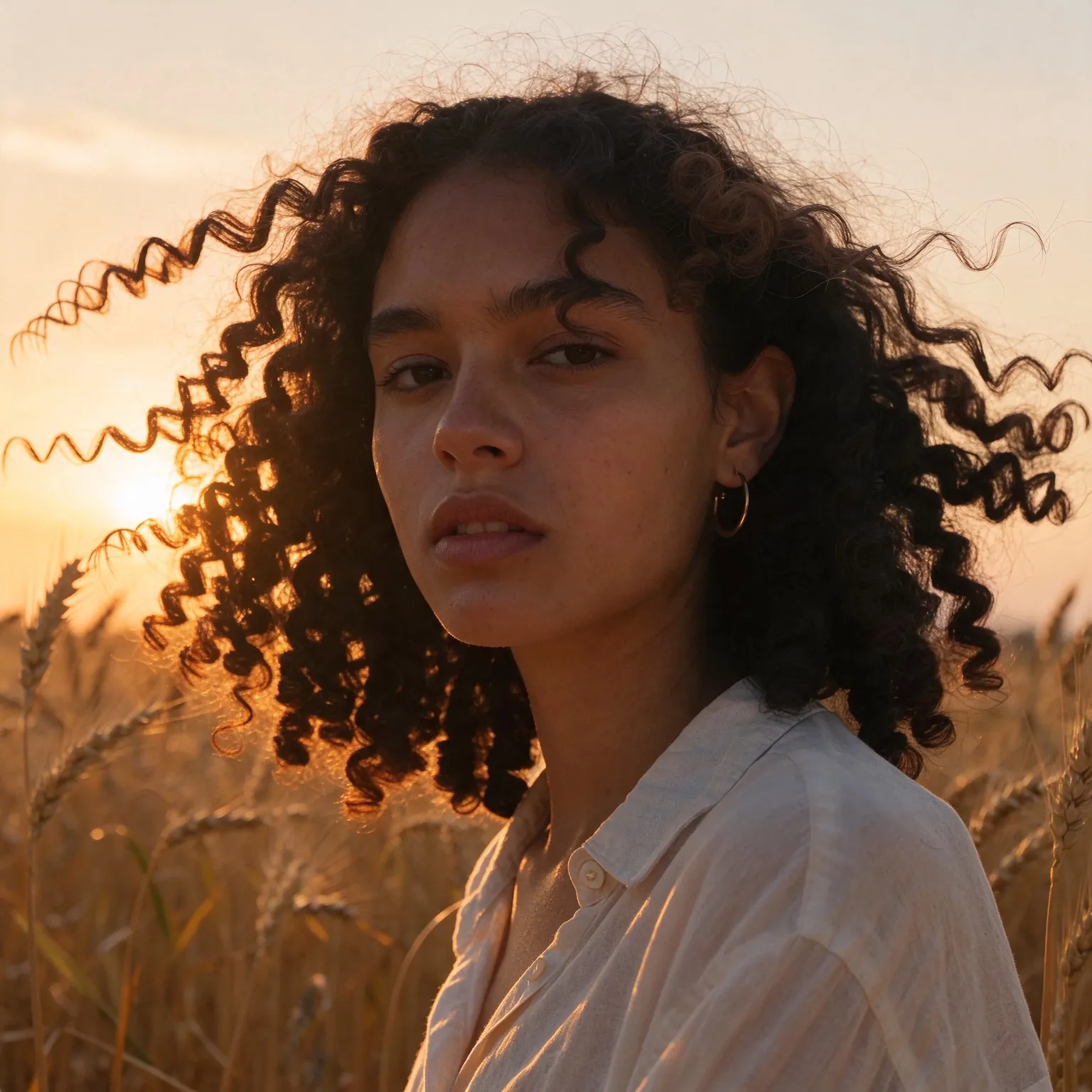
Why AI skin looks plastic, and what this tool adds
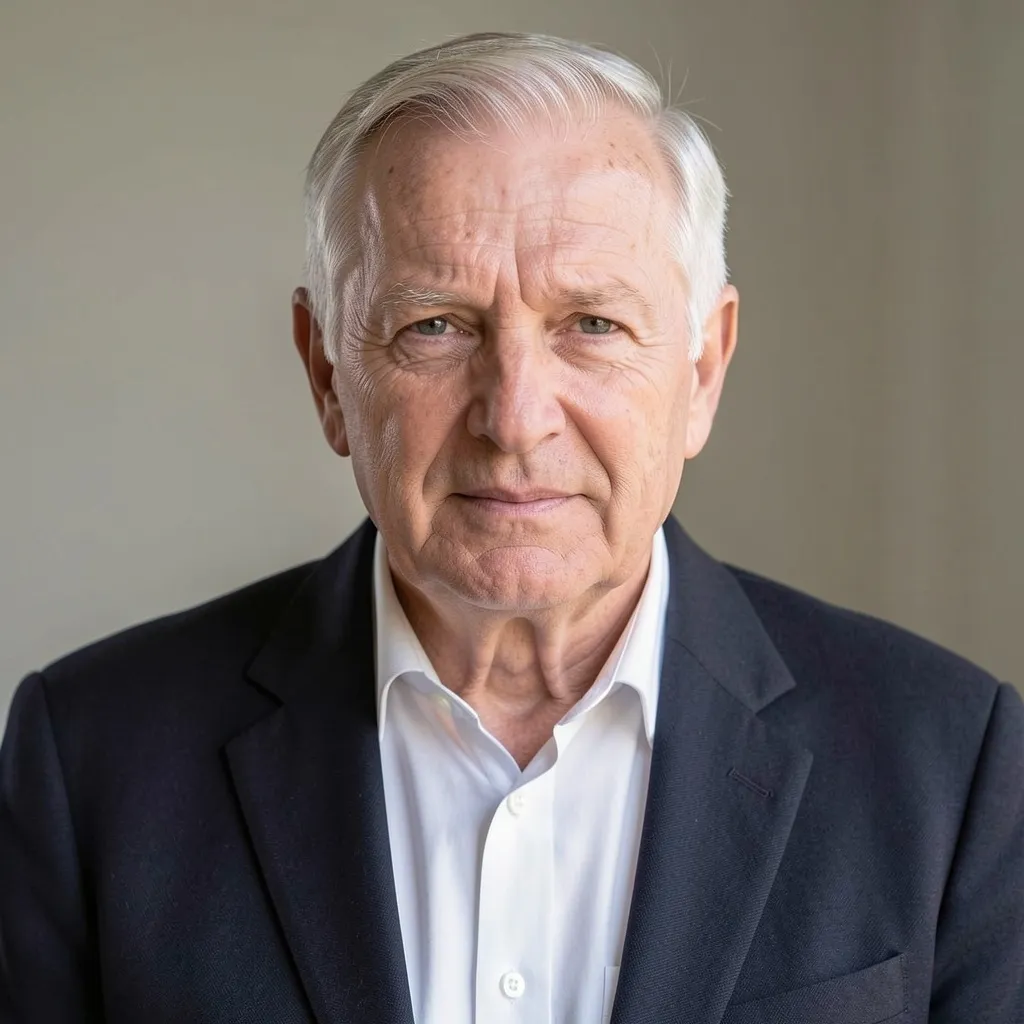
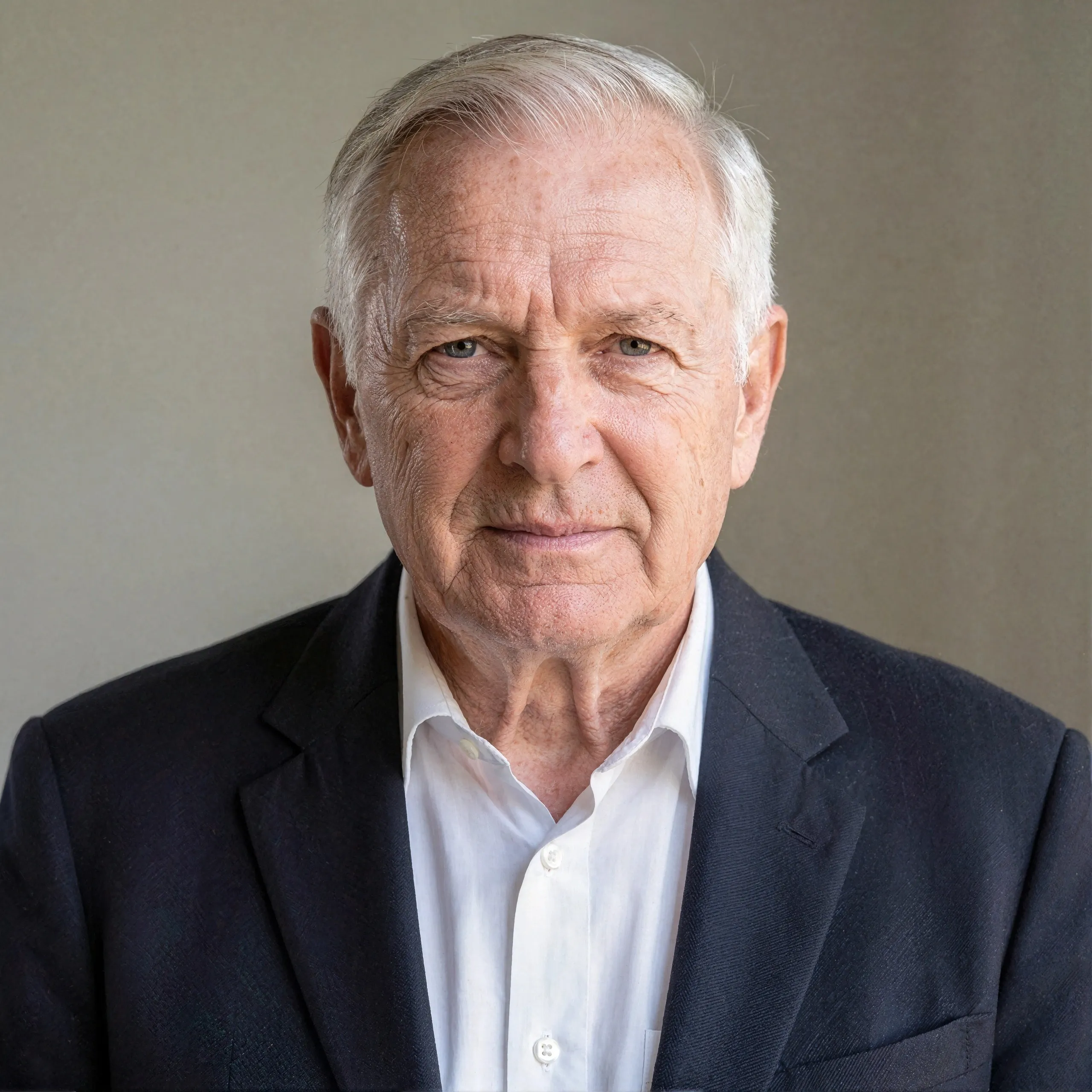
Image generators learned from millions of retouched, compressed photos, so they produce what they saw most: smooth, poreless, evenly lit skin. At thumbnail size it passes. At full size the face reads as a mannequin. Real skin is defined by small imperfections, pores of different sizes, fine vellus hair, faint pigment changes, and tiny shifts in light, and no sharpening filter can add them, because they were never in the pixels. They have to be generated.
This skin texture enhancer runs SeedVR2, a diffusion restoration model, as its default. On airbrushed, smoothed, or soft portraits it restores natural skin texture: pores, fine lines, fine hair, and sharper lashes and brows, while the face, features, and expression stay the same. We tested other approaches on the same portraits. Some smoothed the skin even further, and others added moles and freckles that were never there. SeedVR2 was chosen because it adds real-looking texture without inventing blemishes. If your photo is real and simply small or soft, its skin already has texture, and the free AI image upscaler will enlarge it with the same models.
How to make an AI image look less AI
Most of what makes a picture read as AI comes down to a few tells: skin without pores, hair that melts into a smooth mass, fabric with no weave, and lighting so even that nothing casts a real shadow. Making an AI image look less AI means putting that missing imperfection back. Upload the portrait, press Enhance Skin Texture, and compare on the slider at full zoom, where plastic skin gets caught. The restoration also sharpens fine detail in hair, eyebrows, and lashes, which helps the whole face, not only the skin.
A few habits help beyond the tool. Crop out the parts of the image that look most generated, such as a garbled background sign. Judge at 100 percent rather than as a thumbnail. And if the problem is the composition, a pose or an extra finger, fix it first with the free AI image editor, then add texture. The same steps make AI art look less AI whether it came from Midjourney, Flux, Stable Diffusion, or a chat app.
Choosing a model and getting the best result
Seed VR 2 Small is the default and the one to use when skin looks plastic. It always returns about 2 megapixels, the area of a 1920 x 1080 frame, whatever size you upload. A 2:3 portrait comes back at about 1184 x 1760 px, and a large input comes back smaller than it went in. That size is plenty for screens and social posts, and the texture is the point.
GAN and Real-ESRGAN are faithful enlargers. GAN returns the image at four times its width and height, and Real-ESRGAN does the same for small photos and returns larger ones at up to about 16 megapixels. Both come back crisp and clean, but they add little new texture. GAN has an optional face restoration checkbox, and Real-ESRGAN, which runs on your own device without uploading the photo, also cleans up JPEG noise. Pick one of them when the photo only needs to be bigger, not re-textured. The Edit settings button keeps your image loaded, so trying a second model takes one click.
The best input is a portrait where the face takes up a good share of the frame. Tiny faces in a wide shot do not have enough pixels for the model to work with, and SeedVR2 can invent detail it cannot resolve, so a very small face may come back slightly different. Crop closer first and enhance the crop. Very dark or heavily filtered images can gain texture that looks noisy, since the model reads shadow grain as skin detail; brighten them a little before uploading.
Limits and responsible use
The free tool accepts JPG, PNG, and WebP up to 2048 px per side. A Seed VR 2 Small or GAN run uses part of your daily free GPU allowance, and signing in with a free Hugging Face account raises it. Real-ESRGAN runs on your own device with no daily limit. Because SeedVR2 generates detail, small text and distant faces can change; for a group photo, crop to the face you care about first.
Use it on your own photos, AI images you generated, or images you have permission to edit. Adding realism to a fake image of a real person to deceive others is not an intended use. Uploads are processed transiently and discarded.
When you share the result, keep in mind that platforms and readers increasingly expect AI-generated images to be labeled as such, however real they look.